After creation, rules can be edited, deleted, deactivated, and reactivated as needed.
When considering whether you wish for a rule to no longer apply, choose wisely between deleting or deactivating a rule. If a rule is deleted, it must be created from scratch if you wish to re-apply it or generate a similar rule. Deactivating a rule, however, prevents it from being applied to the run record but leaves room for the rule to apply again simply be reactivation.
To edit a Flexible Business Rule
-
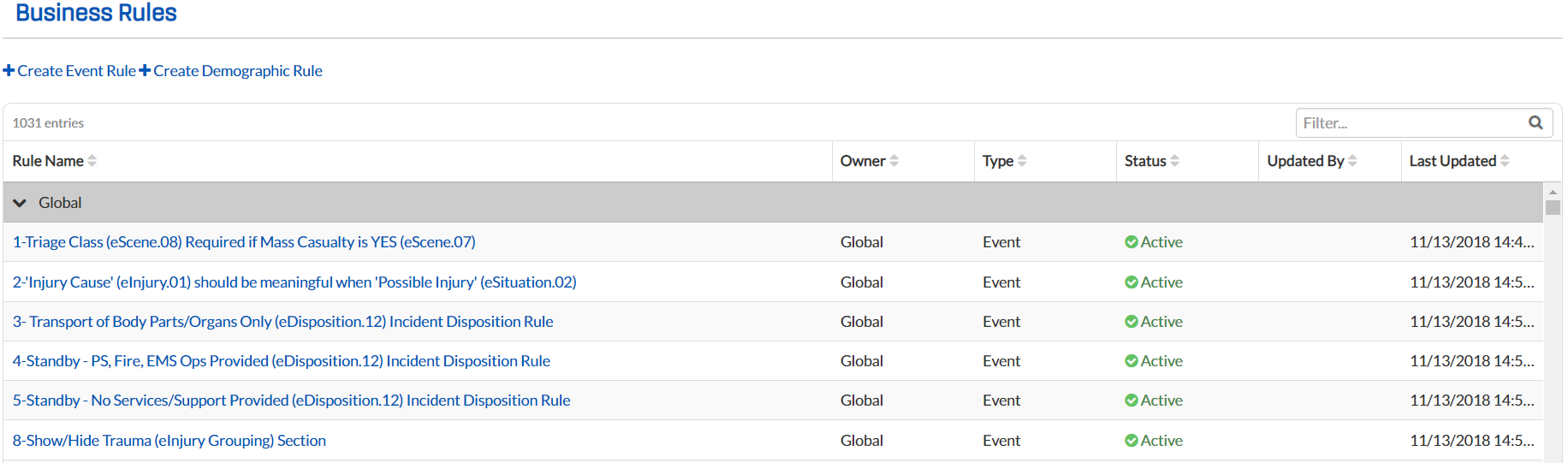
From any page, go to Administration: Business Rules. The Business Rules page opens.
-
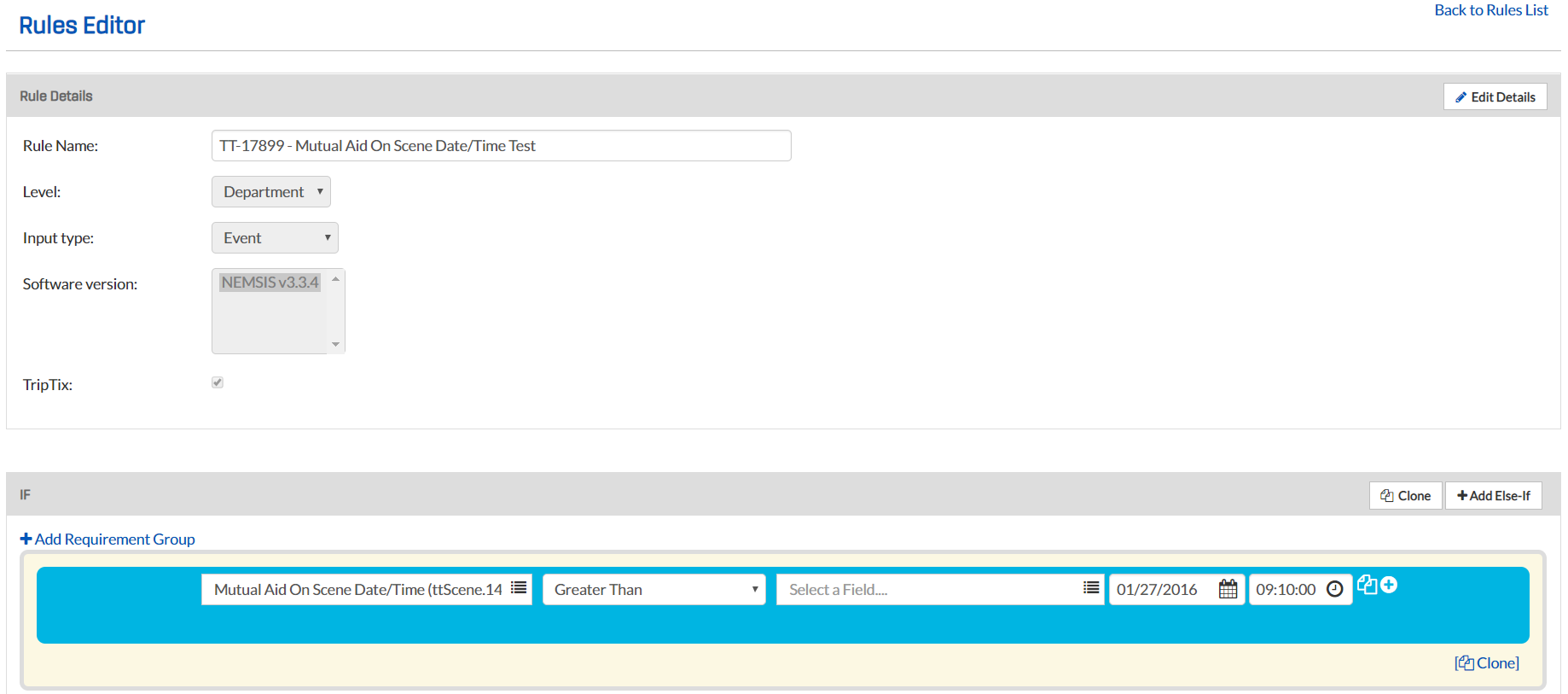
Click the name of the rule you want to edit. The Rules Editor page opens.
-
To edit the name or other specific details about the rule, in the Rule Details section, click Edit Details.
-
Make any necessary changes.
-
To edit the requirements and conditions for this rule, do any of the following:
-
Add a new requirement group.
Click Add Requirement Group and complete all fields as applicable. -
Make new field selections.
Click the applicable fields and make an alternative selection from the Select a Field window. -
Specify a new Boolean operator.
For Boolean Operators, select a different option from the list. -
Add a requirement.
Click the plus icon to the right of the applicable requirement, and then adjust the requirement fields as necessary. -
Delete a requirement.
Click the minus icon to the right of the applicable requirement, and then click Yes in the pop-up window to confirm this action. -
Clone a single requirement.
Click the clone icon to the right of the requirement you want to clone, and then adjust the requirement fields as necessary. -
Clone a requirement group.
Click the clone link at the bottom right of the requirement group you want to clone, and then adjust the requirement fields as necessary. -
Reorder groups.
Click the Order Down or Order Up links to move groups to their appropriate position. -
Remove a group.
Click the Remove Group link for the applicable group. When the confirmation window opens, click Yes. -
Clone an entire If/Then section.
Click the Clone button in the upper right corner of the IF section header, and then adjust the requirement fields as necessary. -
Add an Else-If requirement.
Click the Add Else-If button in the upper right corner of the IF section header, and then adjust the Else-If requirements as necessary
-
-
Once all edits are made, click Save.
To deactivate/activate or delete a Flexible Business Rule
-
From any page, go to Administration: Business Rules. The Business Rules page opens.
-
Locate the applicable rule and click its name. The Rules Editor page opens for the selected rule.
-
To deactivate/activate a rule, scroll to the bottom of the page and click Deactivate Rule or Activate Rule, whichever is applicable.

-
Scroll to the bottom of the page and click Deactivate Rule.
-
Alternatively, to delete a rule, click the Delete Rule button.
-
When the second confirmation window opens, click Yes. A green success message is shown at the top of the page.
In the rules table on the Business Rules page, the rule now shows either Inactive or Active in the Status column.