When users are listed as crew members on a run that is in review, they have permissions to add comments or edit the run record according to any addendums requested. Additional users can be invited to comment as applicable. For those listed in the report or added as participants during a run review, an email is received whenever a comment or action is made regarding the review. These emails conveniently alert users to new comments, requests for changes, and any relevant feedback related to the patient care record.
In some instances, active participants may no longer need to edit, comment, or amend the run record in question. If their role in the QA/QI process is complete, it may be prudent to remove these users from the Active Participants list so that no further email updates are sent to them. Although you cannot remove yourself as an active participant if you are the run owner, administrators can remove any other user from a comment thread as applicable. If you are not the run owner but were a member of the crew, you can remove yourself from the Active Participants list to stop receiving email updates. You will still have access to the run record; you just no longer receive emails regarding the run record's status changes or related requests.
If you were neither the run owner nor listed as a member of the crew but were added manually to the Active Participants list for QA/QI purposes, you will no longer receive emails and you are henceforth unable to access the run record. If it becomes necessary for you to make comments later on in the review process, you can easily be added as an active participant once again. Once added, you can comment as applicable and will start receiving emails indicating changes or updates to the run record.
To remove a user from a run record's active participants list
Note: Record owners cannot remove themselves from the Active Participants list.
-
From the email received regarding the run record in review, click the included link. The Run Summary page opens.
-
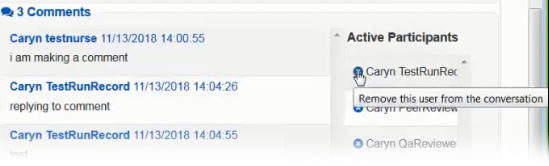
Go to the Comments section and, from the Active Participants panel on the right, click the delete icon associated with the user you want removed from the list.
-
A success message appears. Repeat step 2 as needed.