If an item was added to a pick list by mistake, you can permanently delete it.
Note: Do not delete values appropriate for the pick list or those being used by other departments. You can deactivate those values instead.
To delete an existing pick list item
Note: At the department level, you can only delete an inactive, department-specific entry.
-
From any page, go to Administration: Pick Lists.
-
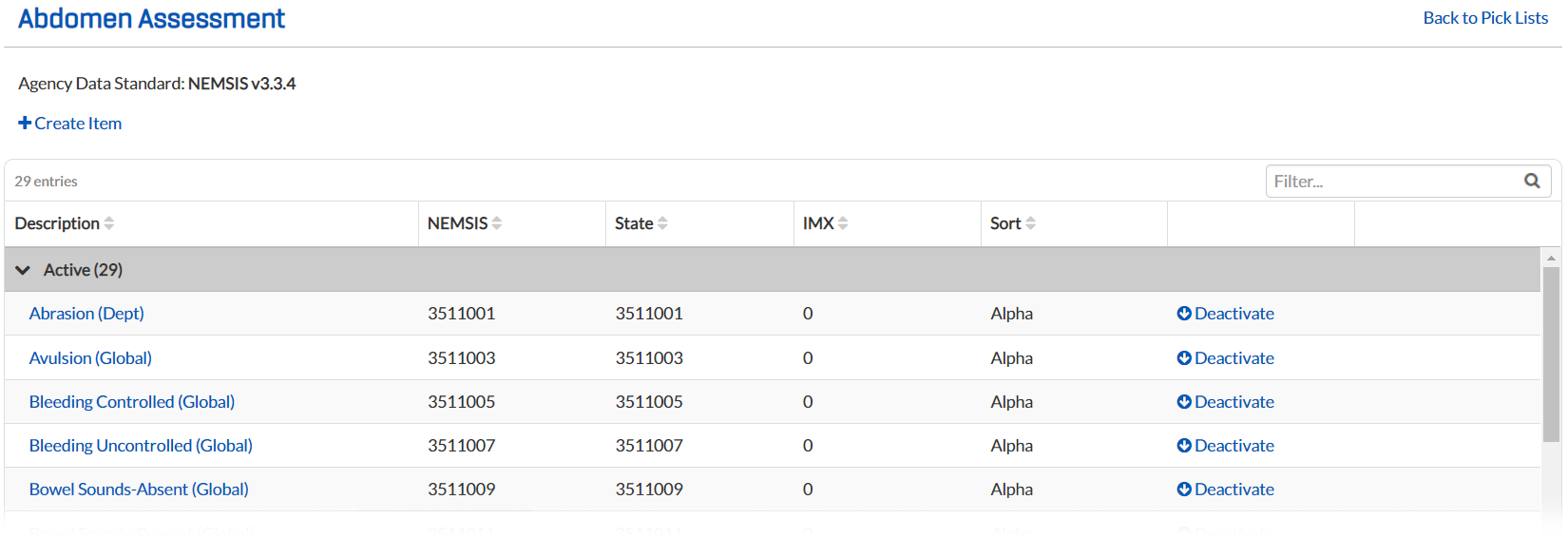
From the table, select the pick list that contains the item you want to delete. That pick list's page opens.
-
For DOH Administrators, from the NEMSIS version drop-down, select the NEMSIS version of the pick list that contains the item you want to delete.
-
If the item you want to delete is active, deactivate it.
-
Once deactivated, in the Inactive section, locate the appropriate item and click its associated Delete link.
-
When the confirmation window opens, click Yes. The item no longer appears in the pick list.