If a pick list is incomplete, you can add new items to it for users to select.
Important: New entries added to a pick list must be mapped to an existing parent NEMSIS value.
To add items to a pick list
-
From any page, go to Administration: Pick Lists.
-
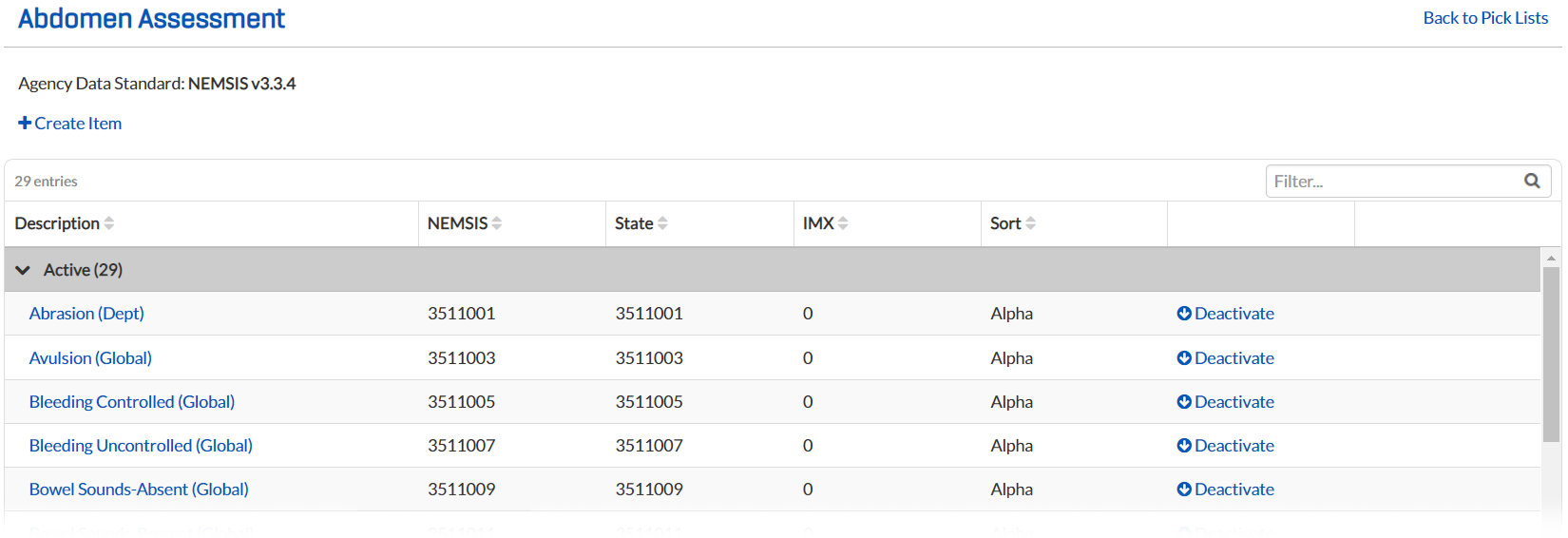
From the table, select the pick list you want to modify. That pick list's page opens. If you select a department demographic, such as Department Facilities, the demographic page opens instead. See Department Demographics.
-
For DOH Administrators, from the NEMSIS version drop-down, select the NEMSIS version of the pick list you want to add the items to.
-
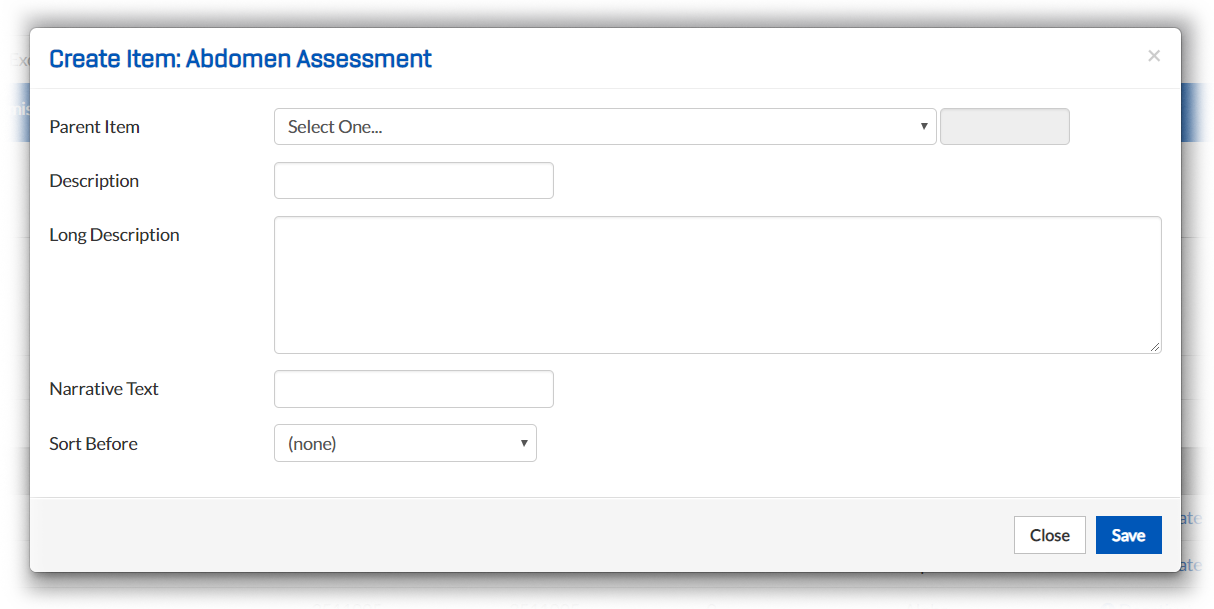
Click Create Item. The Create Item: [Pick List Name] window opens.
-
For Parent Item, select the appropriate NEMSIS value.
-
For Description, enter the name of the item as it should appear to users.
-
For Long Description, enter a detailed description of the item.
-
For Narrative Text, enter the sentence, statement, or simple text that should appear when this pick list item is added as a narrative variable for insertion into the narrative.
-
For Sort, select the position (in relation to other items in the list) in which this item should appear.
-
Click Save.
-
When the confirmation window opens, click Yes. The new item appears in the pick list table.