Activate, Deactivate, or Delete Custom Configurations
You can activate or deactivate any configuration you create from the Custom Configurations page. Deactivating a custom configuration halts its collection in TripTix until you reactivate it. A deactivated configuration is saved for possible future use.
To Activate or Deactivate a Custom Configuration
-
From any page, go to Administration> Pick Lists.
-
Search for and select Custom Configurations. The Custom Configurations page opens. Take note, in the Status column, whether configuration is Active or Inactive.
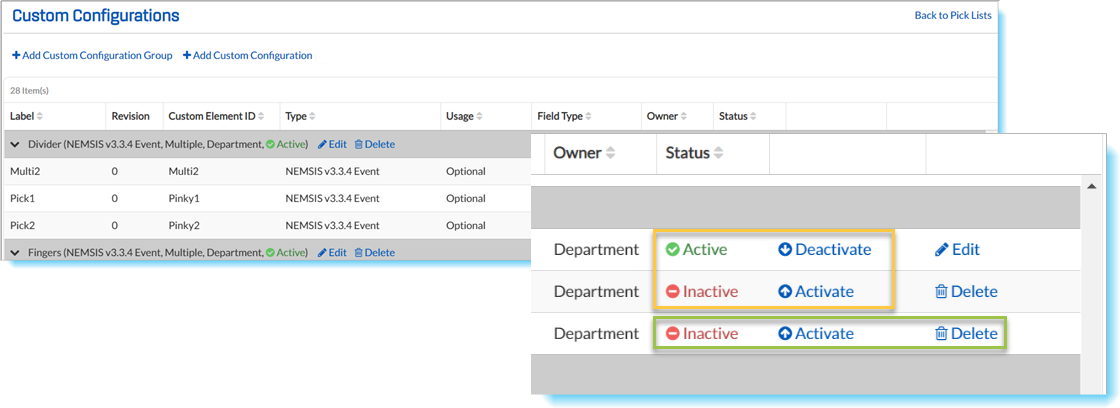
Note: Images reflect the pages as seen by Department Administrators. What you see may be slightly different if you are a DOH Administrator.
- Deactivate a configuration by clicking Deactivate. Activate a configuration by clicking Activate.
- In the popup window that opens, click Yes.
- After being deactivated, the configuration is labeled Inactive in the Status column. Users will no longer see it in a run record.
To Delete a Custom Configuration
- Identify the configuration you want to delete. If it is active, you must first deactivate it. (See above.)
- After you have deactivated a configuration, the Edit field is replaced with the Delete field.
- Click Delete. The Delete Custom Configurations popup window opens.
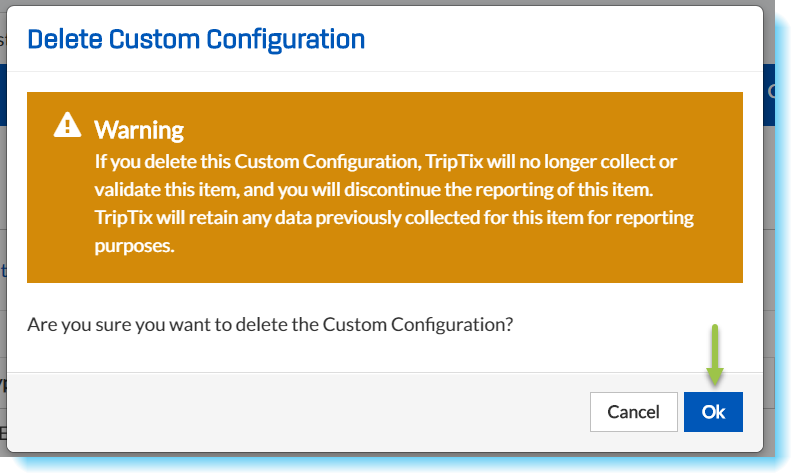
- If you agree with the disclaimer, click Save.
Notes:
- At the department level, you can only delete an inactive, department-specific entry.
- Do not delete configurations being used by other departments. Deactivate them instead.
- At the state level, deleting a custom configuration results in backward compatibility issues with data sets. This is because removing an item halts all XML validation of that question. States should inform their agencies to no longer send that item in XML files.