Tap Menu in the upper right corner of any page in TripTix Windows to open the main menu. The options available in this menu depend on the section of TripTix you are viewing. Review the descriptions of possible options below.
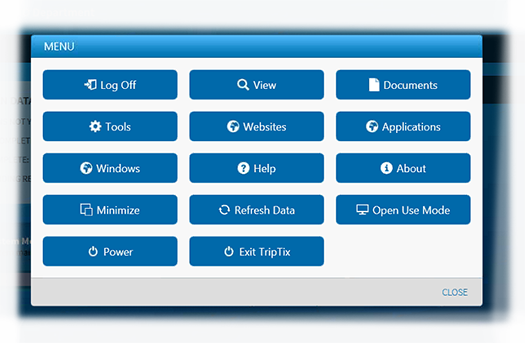
Log Off
This option allows you to log out, and it only becomes visible after you log in to TripTix,
Note: Tapping this button takes you back to the Login page. To log out and close the application entirely, use the Exit TripTix option.
View
Allows you to view the network status, Bluetooth® settings, and system log.
Documents
Opens current TripTix documentation and department-specific reference materials.
Tools
Opens a submenu with the options to capture medic signatures, take camera images, copy files to a USB, and open an in-application calculator.
Websites
Opens a submenu containing website links so you can easily interface with the TripTix Web application and other approved sites.
Applications
Launches approved programs on the Toughbook. Once active, you can press Alt+Tab to switch between windows.
Note: To enable this feature, contact TripTix Support at 888-735-9559.
Windows
Helps you navigate between open windows within the TripTix application, such as Network Status or Help. This is useful on Toughbooks as the secondary windows can disappear behind the main TripTix window.
Help
Allows you to view TripTix Online Help.
Minimize
Minimizes the TripTix application window and hides it from view; this option does not log you out of the application.
Refresh Data
Downloads new data for the pick lists.
Note: TripTix Windows checks for new pick list data every 30 minutes. Therefore, if an administrator adds a new pick list item, it may not be visible in the pick list for up to 30 minutes. Tapping this option makes new data available immediately.
Error Check
Checks whether a run record is missing any required or recommended information.
Note: This button is visible only when you open the menu from a page in the run record.
Open Use Mode
Allows you to access the Windows desktop. This option is only available in kiosk mode for authorized users.
Important: Using this function shuts down your Toughbook and then creates and logs into a Windows Administrator account. This provides unrestricted access to the Desktop and other Windows functionality until you log out.
Power
Closes TripTix and powers down the Toughbook. This option is only available in kiosk mode.
Exit TripTix
Logs out of TripTix and closes the application. This option is not available in kiosk mode.