The Corrections function is available after a Supervisor or QA Reviewer requests corrections. When you receive an email notification that an ePCR required changes, you use the Corrections workflow to respond.
Tip: you can also make corrections in TripTix - Windows, if you prefer to use your mobile device.
To Read and Respond to Comments in a Record
-
From any page, go to Run Records:Corrections. Alternatively, on the Home page, click the number in the Corrections row of the Number of Runs column. The Corrections page opens.
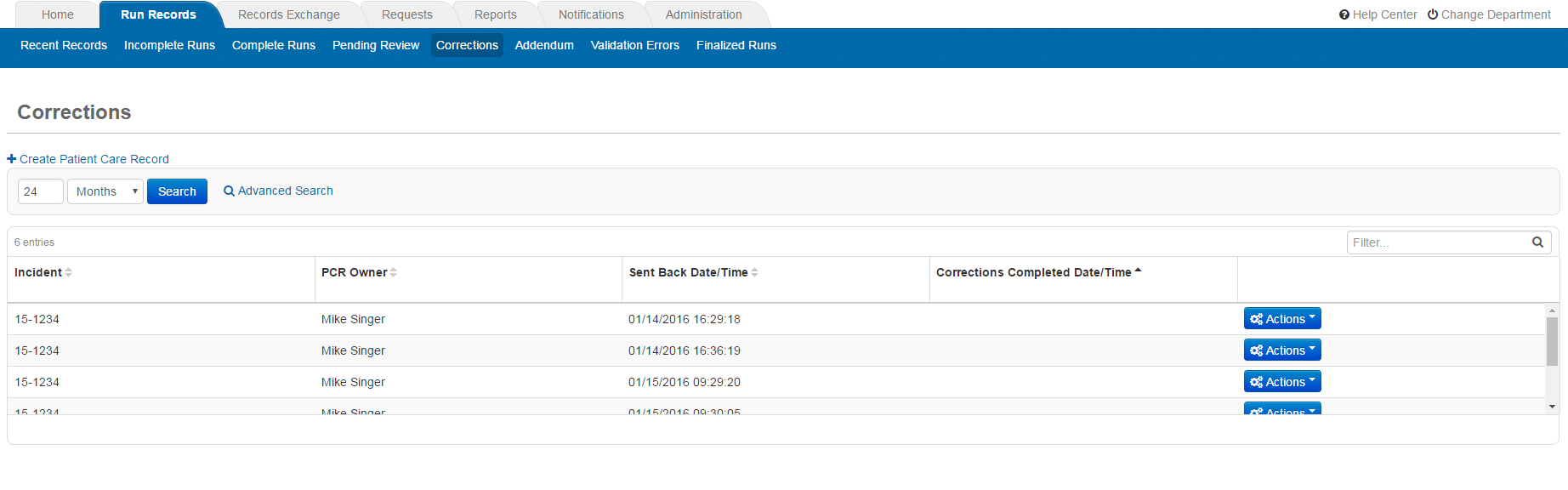 Note: By default, the time filter at the top of the Corrections page is set to three days. This filter can be changed to search for older runs. Alternate search options can be located under the Advanced Search feature.
If you do not see your run record in the Corrections table even after changing the parameters of the time filter, then you may not be the record owner.
-
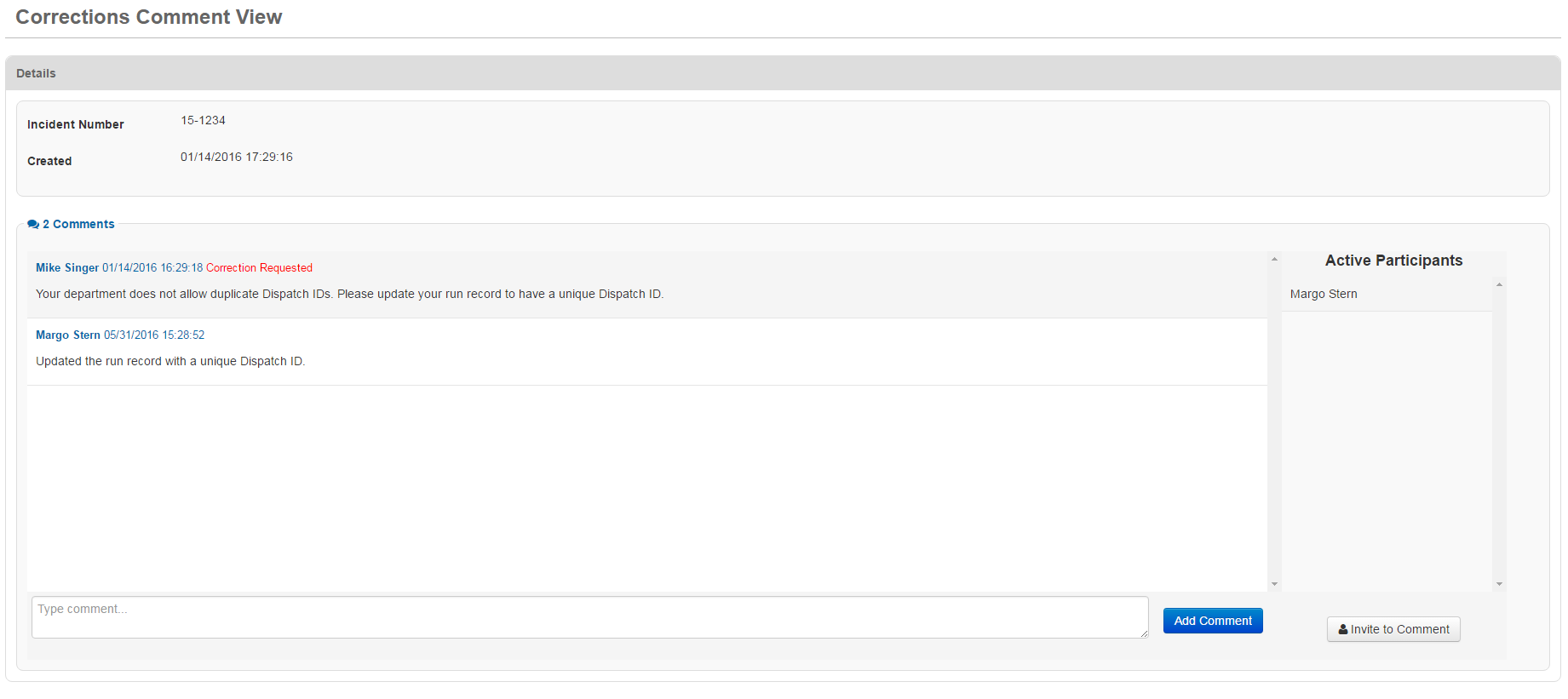
Click the Actions button corresponding to the appropriate record, and then select Comments. The Corrections Comment View page opens.
-
Read the reviewer's description of the desired correction. If you have a question or comment in response, enter your comments in the Type comment text field and then click Add Comment. If you have no response, you can click the back arrow of the browser to exit this window.
- If you wish, you may request that another participant make comments on the record. To do so, tap Invite to Comment in the lower-right corner of this section. A list of your department's users opens.
To Make Corrections to a Record
-
From any page in CDX, go to Run Records:Corrections. Alternatively, on the CDX Home page, click the number in the Corrections row of the Number of Runs column. The Corrections page opens.
-
Click the Actions button corresponding to the appropriate record, and then select Edit. The run record opens.
-
Correct the patient care record as requested.
-
If you need to review the reason for the correction request, click Corrections, located to the left of the Error Check button near the top right of the run record.
-
Click Save and then Save & Exit.
-
If all errors have been addressed, click Yes and then Save & Finalize. The record is sent back to the Pending Review queue.
-
If errors still exist:
-
To discard any change you made, click Home, then click Exit without Saving in the View All Errors window. The run record remains in the Corrections queue.
-
To save any changes and complete the run later, click Home, then click Save & Exit in the View All Errors window. The run record remains in the Corrections queue.
-
When you have completed all corrections on a run, it is sent back to a supervisor for approval. At that time, a date and timestamp appears in its row of the Corrections Completed Date/Time column of the Corrections table. Click the Corrections Completed Date/Time column header to sort the list with the runs needing corrections at the top.
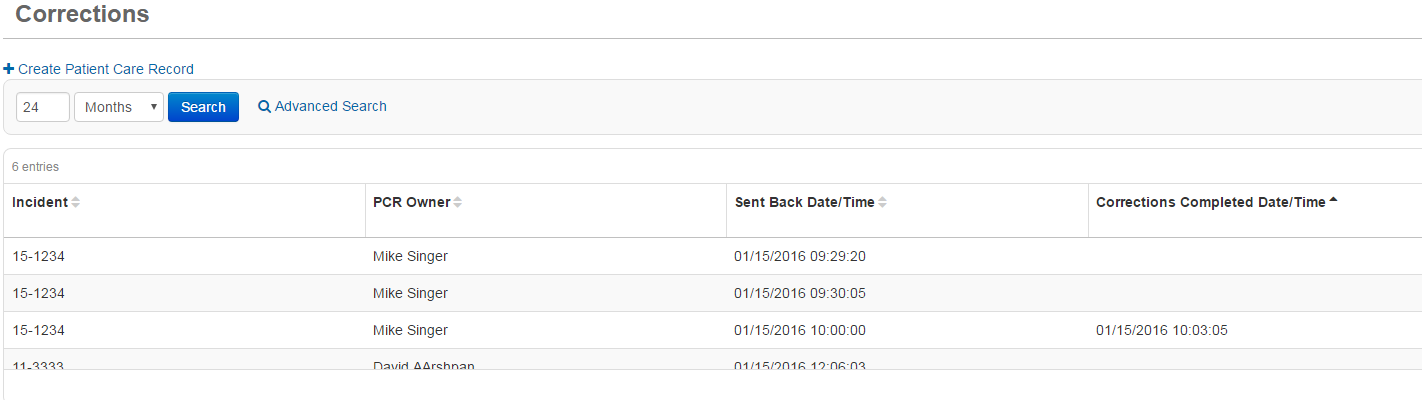
For reference purposes, the entry remains in the Corrections table after the review has been completed, but it is no longer counted as a run needing corrections.