The Applications tab allows you to add applications that users can access from their device. From this tab, you can add, edit, and delete applications as your permissions allow.
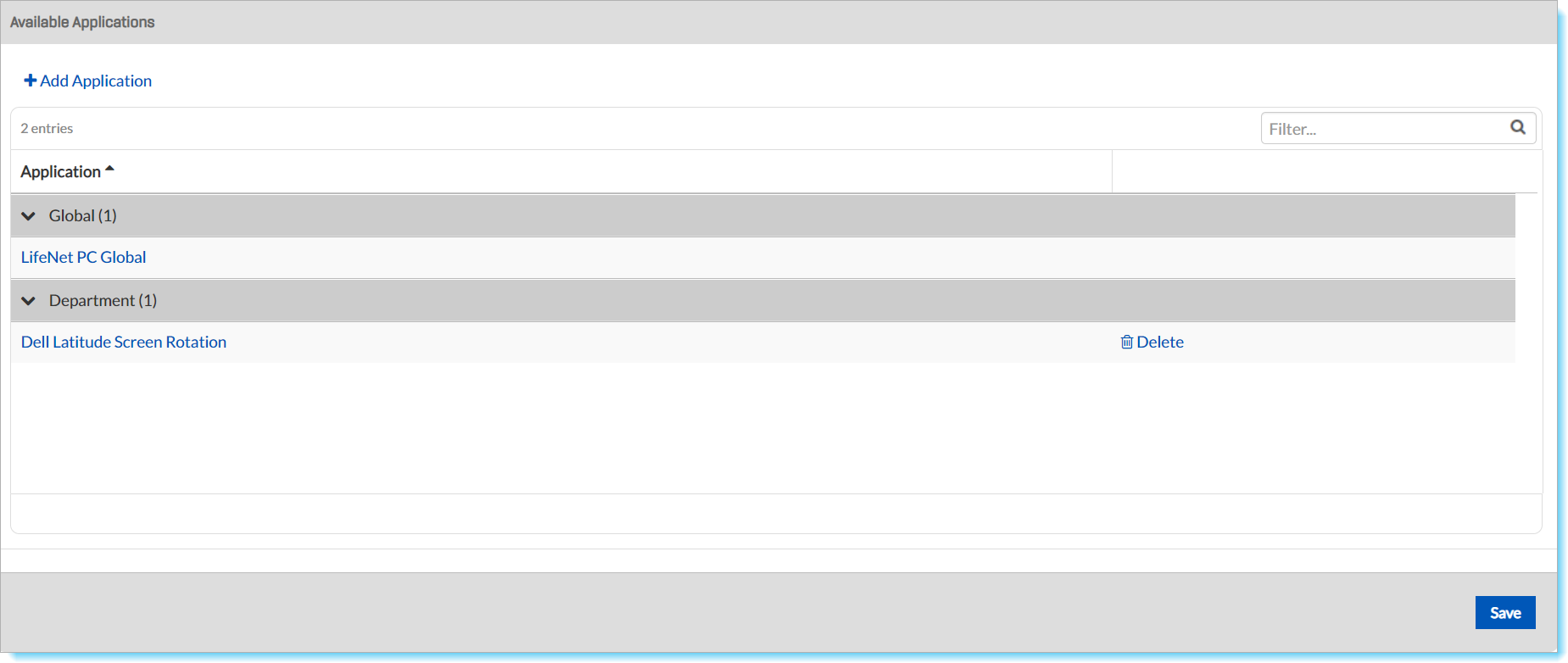
Note: When viewing an application, Department Administrators see read-only fields that cannot be changed.
To Add an Application
-
From any page, go to Administration:System Settings.
-
Click the Applications tab.
-
Click Add Application.
-
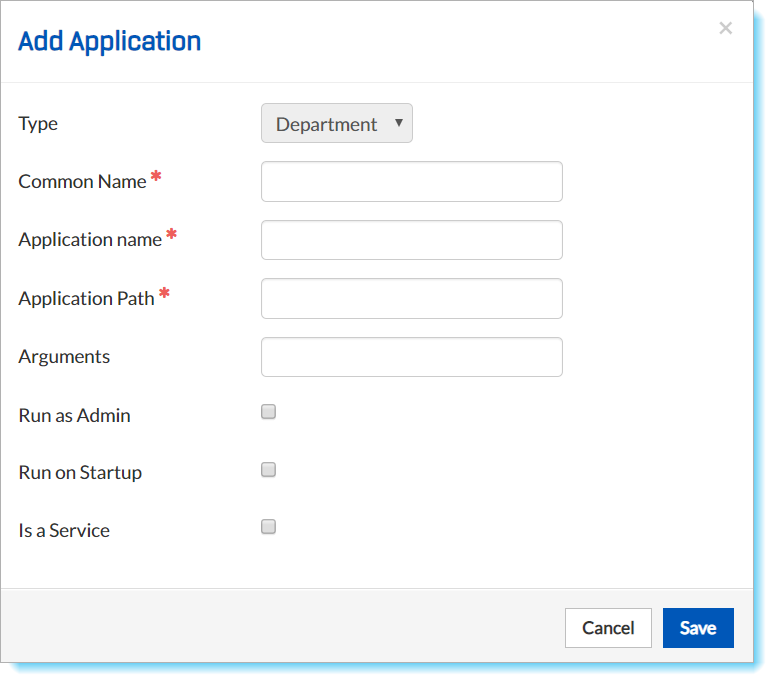
In the Add Application window, enter information in the fields as appropriate.
-
Click Save.
Application Fields
Type: The type of application; defaults to Department
Common Name: The application's common name or brand name
Application Name: The application's full, technical name, such as "stscreenrotationapplication.exe"
Application Path: The file path to the application's location; for example, "C:\Program Files (x86)\ST Microelectronics\ST Microelectronics USB Sensor Hub"
Arguments: Any arguments that apply to the application
Run as Admin: Whether the application can only be run by system administrators
Run on Startup: If checked, the application opens and runs upon startup
Is a Service: Indicates whether the application is a service
To Edit an Application
-
From any page, go to Administration: System Settings.
-
Click the Applications tab.
-
In the Available Applications section, click the name of the application to be edited.
-
In the Edit Application window, edit the information in the fields as appropriate.
-
Click Save.
To Delete an Application
-
From any page, go to Administration: System Settings.
-
Click the Applications tab.
-
In the Available Applications section, locate the name of the appropriate application and click its corresponding Delete link.
-
When the confirmation window opens, click OK.