Learn more about using the keyboard to log in, make multiple selections in a multi-select pick list, and add an assessment to TripTix Windows.
To log in to TripTix Windows
-
From the Home screen, tab into the Medic field and press either Enter or the spacebar.
-
Either begin typing your name in the filter field or tab down to your name in the list.
-
Press the spacebar to confirm your selection.
-
Tab into the PIN field and enter your PIN.
-
Press Enter.
To locate an option in a drop-down list
-
Tap in the applicable field. The drop-down list and/or options window opens.
-
Tap in the search field.
-
Begin entering the first few letters of the option you want to select for the field.
-
Either finish typing the name of the option or tap the option in the narrowed-down list of possible options.
-
Tap OK.
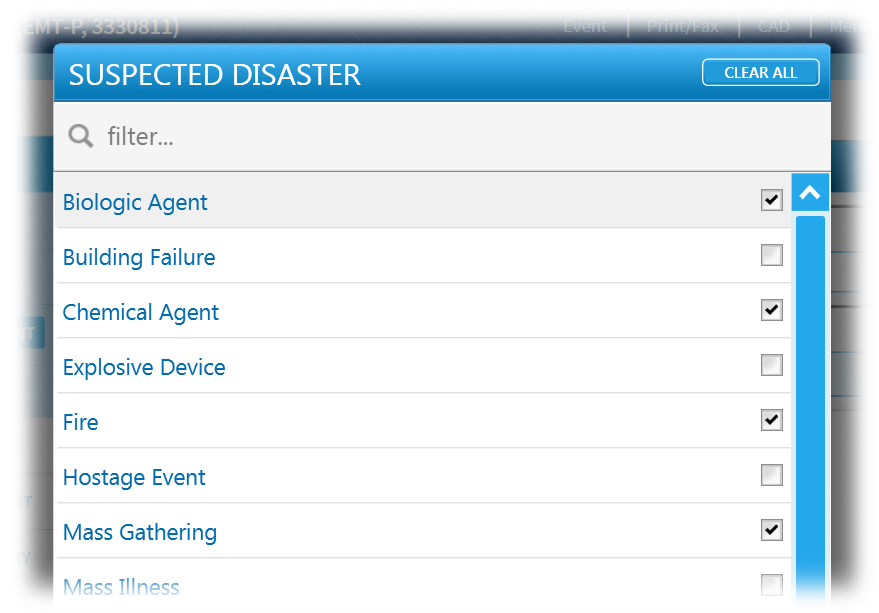
To make multiple selections in a multi-select pick list
Note: Multi-select pick lists, those that allow more than one option to be selected, have check boxes next to each option instead of round radio buttons.
-
To open the multi-select pick list window, press Enter or the spacebar.
-
Use Tab or the Up and Down arrow keys to navigate to the appropriate option.
-
Press the spacebar to select the check box.
-
Repeat steps 2-3 for each option you want to select.
-
When finished making selections, press Enter.
To add an assessment
-
In the New Assessment window, tab to each field and enter information as appropriate.
-
Move to a new tab by pressing Tab, followed immediately by the spacebar. You cannot be within a field when you perform this action; you must have the tab itself selected.
-
When finished adding assessment details, press either Enter or the spacebar. The assessment appears in the Assessments table.