To get the best possible performance from your Toughbook, follow these instructions for configuring optimal power settings.
Note: Only administrators or users with access to the Toughbook's Control Panel can configure the power settings.
To configure optimal power settings
-
Open the Windows Control Panel.
-
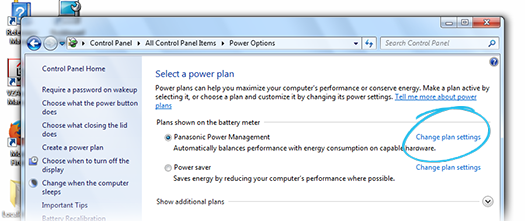
Click Power Options.
-
To the right of the selected power plan, click the Change plan settings link. It does not matter which power plan is selected. The Edit Plan Settings page opens.
-
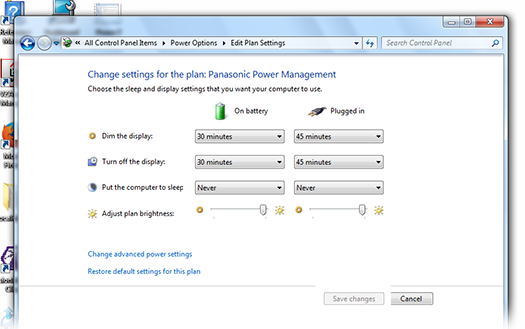
For the On battery settings, select the following:
-
Dim the display – 10 minutes
-
Turn off the display – 30 minutes
-
Put the computer to sleep – Never
-
Adjust plan brightness – Indicator pulled to far right. This setting is a recommendation only. Adjust the brightness according to your viewing preferences.
-
-
For the Plugged in settings, select the following:
-
Dim the display – 20 minutes
-
Turn off the display – 45 minutes
-
Put the computer to sleep – Never
-
Adjust plan brightness – Indicator pulled to far right. This setting is a recommendation only. Adjust the brightness according to your viewing preferences.
-
-
Verify that your selections appear as follows:
-
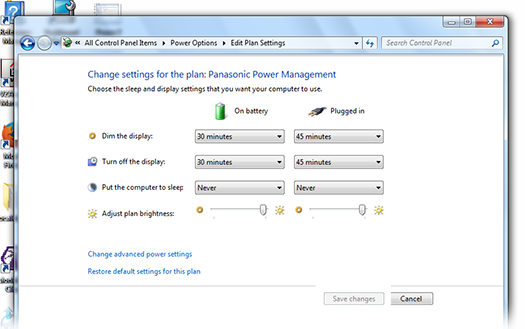
Click Change advanced power settings. The Power Options window opens.
-
For Hard disk, click the plus icon. The category expands, showing the options under this setting.
-
For Turn off hard disk after, select Never for both the On battery and Plugged in settings.
-
For Wireless Adapter Settings, click the plus icon. The category expands, showing the options under this setting.
-
For Power Saving Mode, select Maximum Performance for both the On battery and Plugged in settings.
-
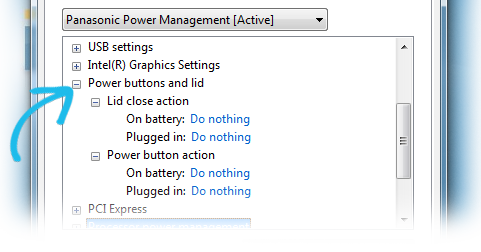
For Power buttons and lid, click the plus icon. The category expands, showing the options under this setting.
-
For Lid close action, select Do nothing for both the On battery and Plugged in settings.
-
For Power button action, select Do nothing for both the On battery and Plugged in settings.
-
Click Apply, and then click OK. The Power Options window closes.
-
On the Edit Plan Settings page, click Save changes.