Documenting the immunizations a patient has had may be relevant if, for example, the patient called EMS after stepping on a rusty nail and has not had a tetanus shot in 10 years. When immunizations are known or pertinent, they can be documented in TripTix via the Medical History section.
Add Patient Immunizations
To add a patient immunization in Windows
-
In the side navigation of an open run record, tap Medical History. The section expands to show the available subsections.
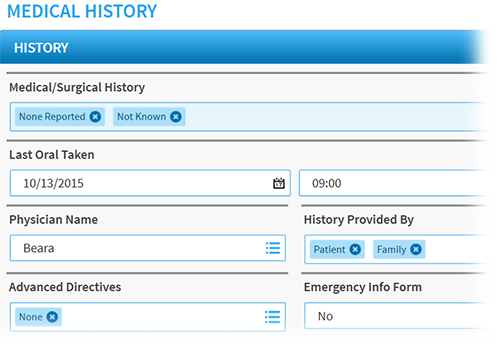
-
Tap Immunizations.
-
Tap in the Immunization field and select the immunization received by the patient.
-
For Year, enter the year that the patient received this immunization.
-
Tap Add. The immunization appears in the immunizations table.

To add a patient immunization in Web
-
In the side navigation of the open run record, click Medical History. The History subsection is displayed.
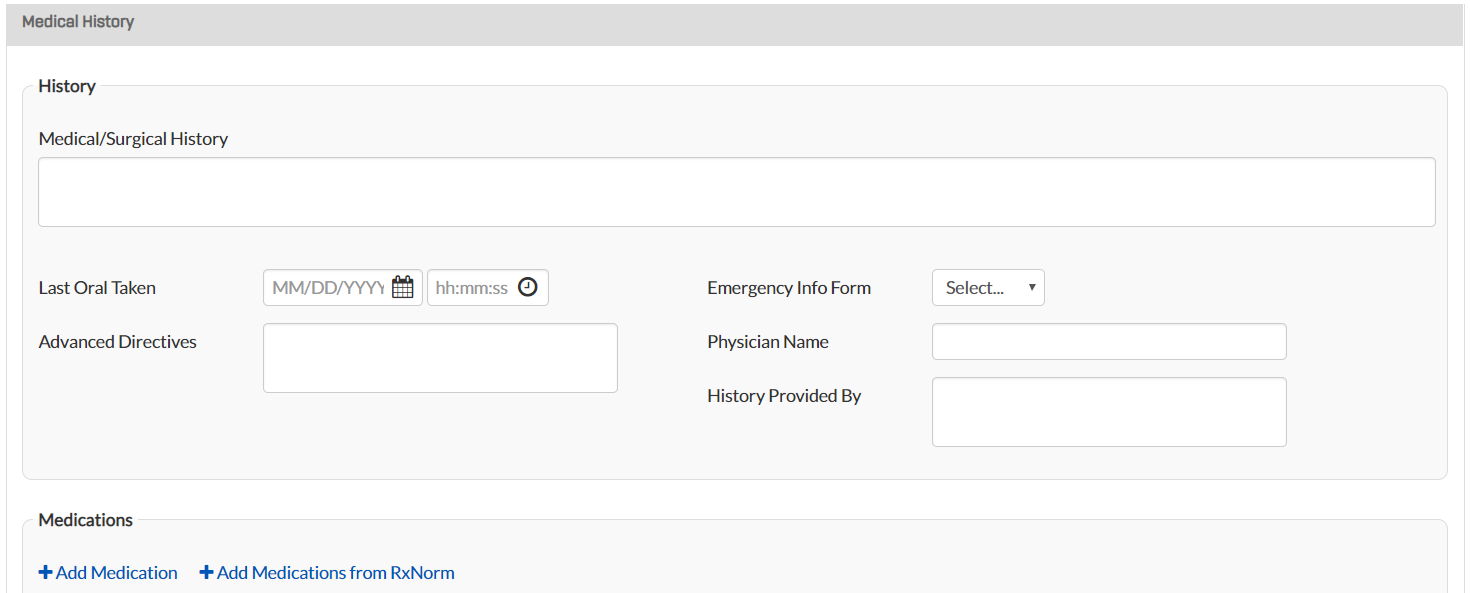
-
Go to the Immunizations subsection and click Add Immunization. A new row opens in the immunizations table.
-
Enter information in the fields.

Edit or Delete Patient Immunizations
To edit or delete a patient immunization in Windows
-
In the side navigation of an open run record, tap Medical History. The section expands to show the available subsections.
-
Tap Immunizations.
-
Go to the immunizations table and tap the appropriate immunization's corresponding Edit button.
-
Make your changes.
-
Tap Edit.
To delete an immunization from the report, tap the appropriate immunization's corresponding Delete button.
To edit or delete a patient immunization in Web
-
In the side navigation of the open run record, click Medical History. The History subsection is displayed.
-
Go to the Immunizations subsection.
-
In the immunizations table, click in the field you want to edit and make your changes.
To delete an immunization, click the appropriate immunization's corresponding trash can icon.