You can speed up the documentation process by making a copy of an existing run record. This is useful when you are picking up a repeat patient or when you have multiple patients involved in the same incident. You can specify exactly what data is copied to the new incident, including incident data, dispatch IDs, patient names, trauma details, and more.
To Copy an Existing Run Record
Note: This functionality only operates when your device is connected to the Internet.
- Locate the original run on the Recent Records window.
- Tap the Copy icon (
 ) at the right of the record's row. The Copy Run:Select Data window opens.
 - To copy the entire record, tap Select All.
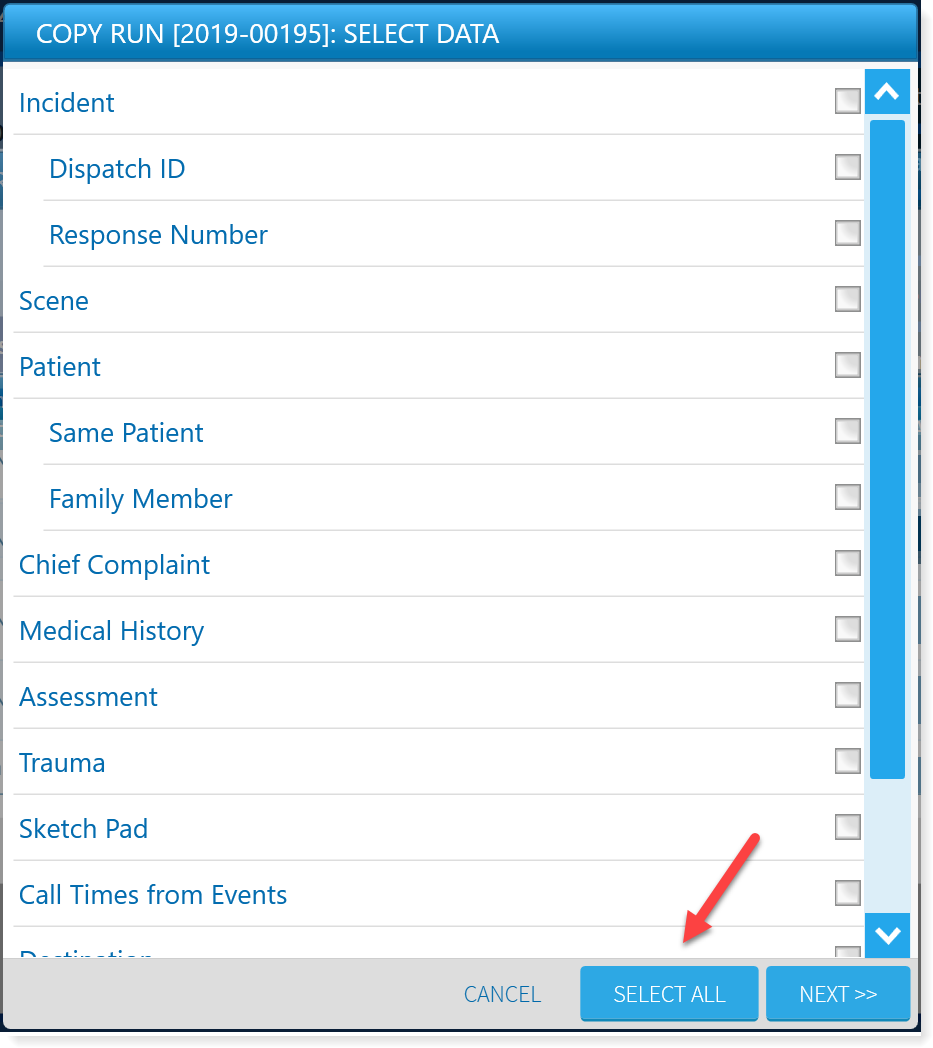
- To copy some, but not all, elements of the record, check the boxes of the elements you want to duplicate. Your choices are:
- Incident
- Dispatch ID
- Response Number
- Scene
- Patient
- Same Patient
- Family Member
- Chief Complaint
- Medical History
- Assessment
- Trauma
- Sketch Pad
- Call Times from Events
- Destination
- Narrative
- Insurance & Payment
When you have completed your selections, tap Next. The Pickup & Destination Location popup window opens. Select one of the following options:
- Copy selected location(s) as is – Select this option to copy both the Pickup and Destination locations to the copied run record.
- Copy only destination to Pickup – Select this option to copy the Destination location into the Pickup location in the new copied record.
- Copy & Swap both locations – Select this option to copy and then reverse the Pickup and Destination locations to the new copied record.
Tap Create Run.