When working on a run record in TripTix Windows, you can transfer a run record from one mobile device to another. You can also retain a local copy of the record on your device, as needed.
To Transfer a Run Record
-
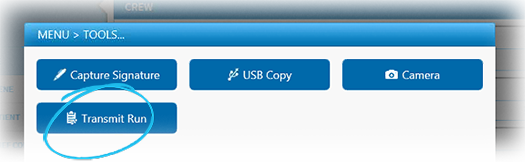
From any page, tap Menu:Tools. The Menu window opens.
-
Tap Transmit Run.
-
If you would like to keep a local copy of the run, when the pop-up window opens, tap Yes. Otherwise, tap No.
-
For Addendum, add your addendum, as applicable.
-
When finished, tap Save.
The run record's status is shown as Complete while the record processes. Once processed, the new status will be Pending Review.