Communicating with other TripTix users within your department is possible via Windows’ in-application messaging. After logging in to TripTix Windows, the Home page displays the Messages button on the right, just below the Bulletins button. If there are pending messages in your inbox, a yellow notification dot appears on the Messages button with a number to indicate the quantity of messages yet to be addressed.
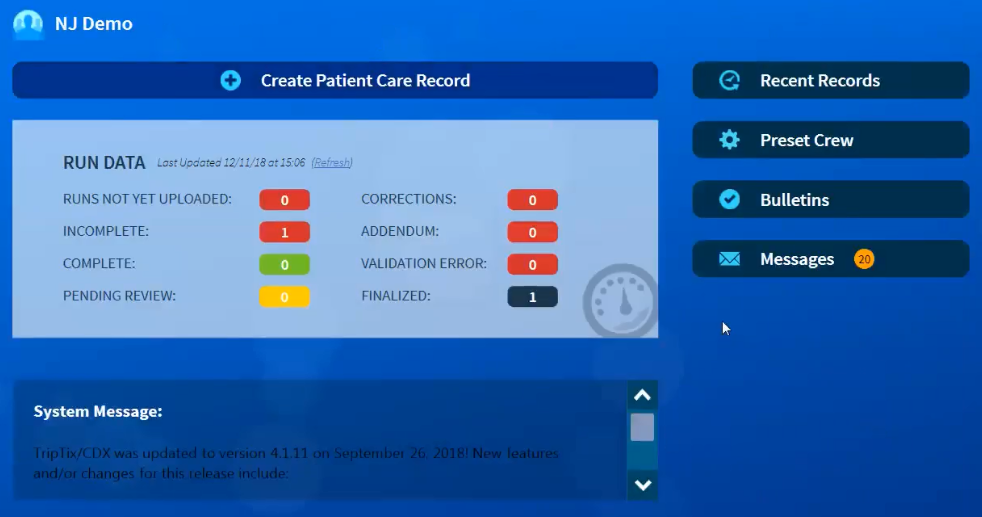
Tap Messages and a window opens. From this window, you can:
- Open new or unread messages
- Respond to internal messages
- Delete messages
- Send internal messages
- View sent messages
- View deleted messages
To open, reply to, and/or delete an internal message
-
From the Home page, tap Messages.
-
From the Message window that opens, tap any of the messages with an orange dot in the Status column; orange dots in this column indicate new, unread messages.
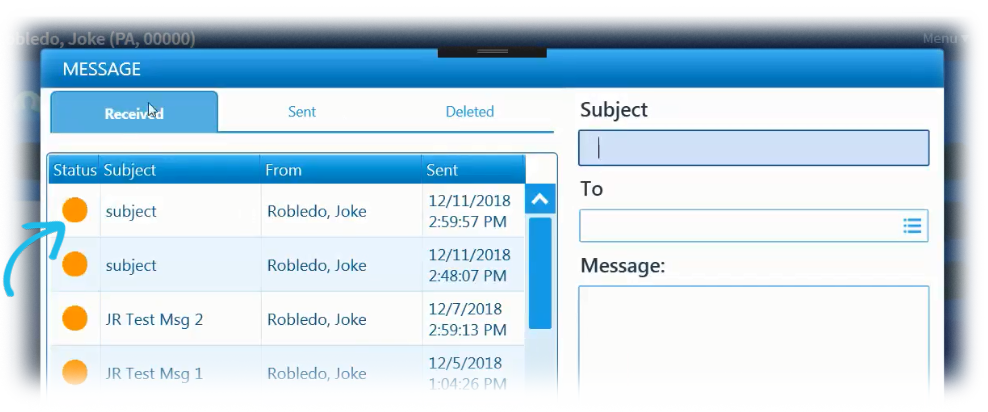
-
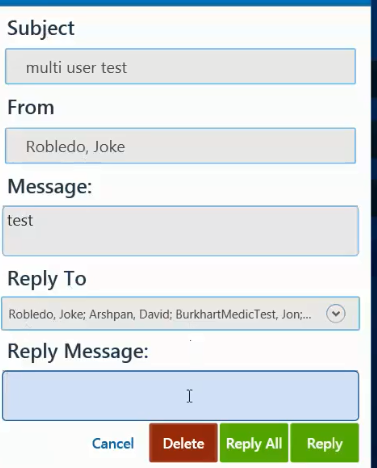
Message details open to the right. From here, you can:
-
Read the message and then, to close the window, tap Close.
-
In the Reply text box, enter a reply to the message and then tap Reply.
Note: Not all messages allow a reply. Further, some messages may have a Reply All button. If available, clicking this button sends your reply to all individuals who receiving this message, including the sender.
-
Delete the message by clicking the Delete button.
-
To send an internal message
Note: Only users with the appropriate permissions can send an internal message.
1. From the Home page, tap Messages. The Message window opens.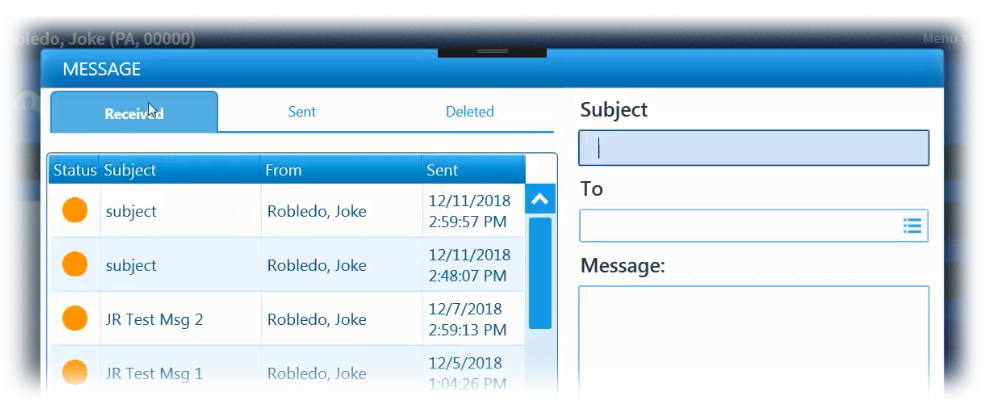
2. Tap the Subject text box and enter a subject for your message.
3. Tap the To text box.
4. In the To window, select the applicable users from the list and then tap Ok.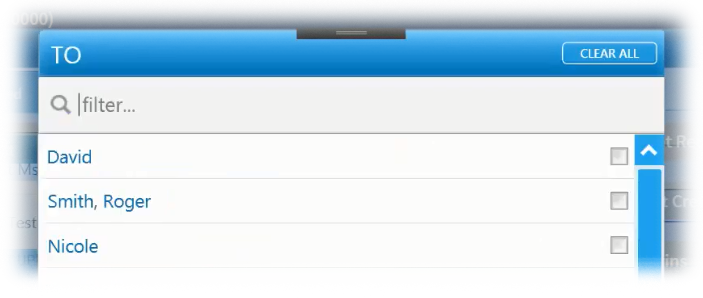
5. Tap the Message text box and enter your message.
6. Optionally, if recipients should not be allowed to reply to this message, tap the Disable Replies check box
7. Tap Send.
To view sent messages, from the Message window, tap the Sent tab.