Errors appear in the run record if any required fields remain incomplete or contain conflicting information. A run report cannot be finalized and submitted until you correct all errors.
Errors are marked by a red line and red asterisk and warnings are marked by a yellow line and asterisk .
To Check a Run Record for Errors
- From any page in an open run record, click the red Error Check button in the menu bar at the top. The View All Errors window opens, displaying all errors and warnings in the run record.
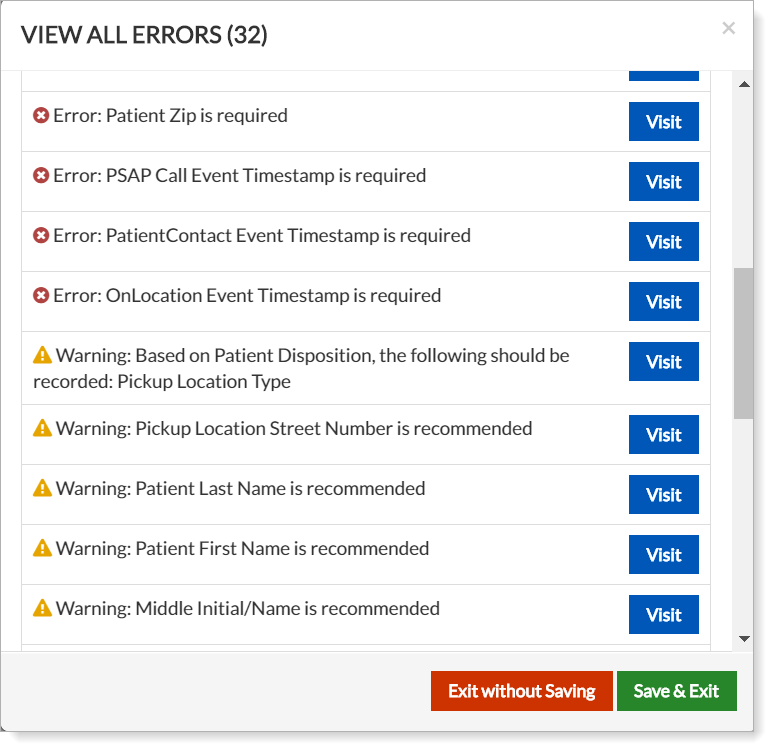
- Errors are identified by red circles with an 'x' and warnings are identified by yellow triangles with an exclamation point.
- To open the section of the report containing the error or warning, click Visit.
- When all errors are corrected, you are prompted to finalize the record.
- Click Save and Finalize.
If your department has enabled the Auto-preview PDF before Finalization system setting, a PDF preview of the ePCR is shown for your review when you select Yes, Save & Finalize.