Saving a run record allows the record to move along in the validation process, eventually becoming finalized and sent out for billing. Saving a record does not mean, however, that the run must be 100% complete. You can also save a run record that is in progress and return to complete it later, submitting it only after it is finished.
To Save a Run Record
By default, TripTix has several features to ensure that your data is saved frequently and securely. Regardless of custom configurations, TripTix automatically saves your run record every minute. The run record is also saved if you navigate to a new page.
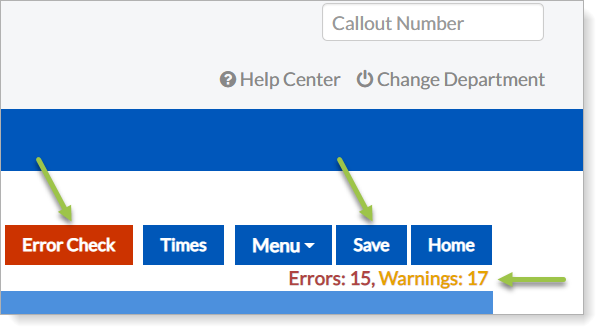
In addition to the automatic saving features, you can always save a record manually by clicking Save in the upper-right corner of the run window. This is useful if you need to save your progress and continue documenting the run later.
To Finalize a Run Record
In addition to being able to save your work by clicking Save in the menu bar, you can also view the current number of errors and warnings attached to the run record. For detailed information on the errors and warnings, do the following.
- Click Error Check. The View All Errors window opens.
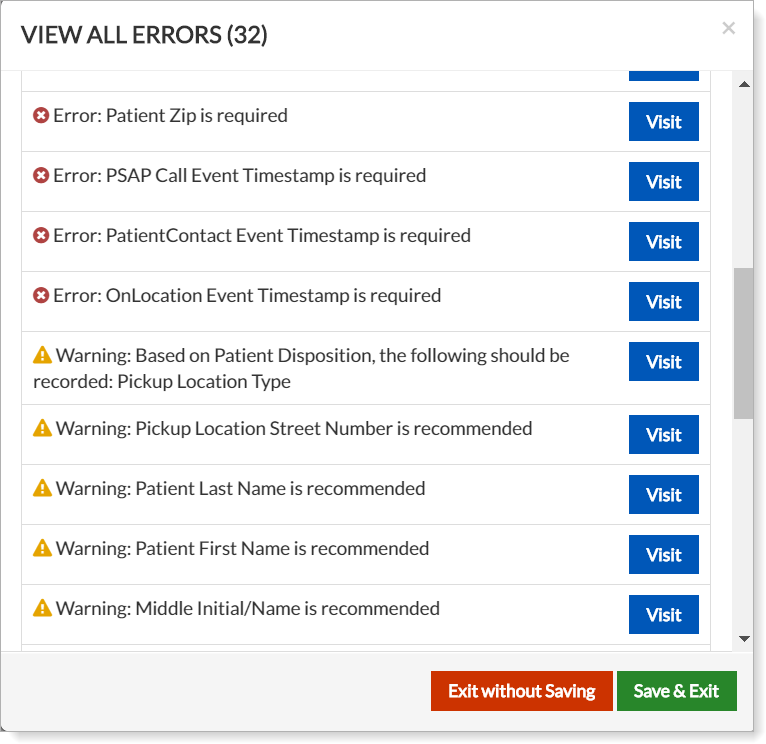
Note: Errors are marked with an x in a red circle. Each has a brief description of required information that must be included in the report for it to be finalized. Warnings are marked with an exclamation point in a yellow triangle. Warnings, unlike errors, are simply recommended items; they are not required for the run record to be finalized.
If you do not address all errors, you cannot submit the record. Therefore, take one of the following actions, depending on whether you want to save any changes made to the run record:
To Exit the Run Record Without Saving
- Click Exit without Saving on the View All Errors window.
- Click Yes in the confirmation window.
To Save Changes and Exit the Run Record
- Click Save & Exit. You may choose this option regardless of any remaining errors or warnings. You can edit the run later, at your convenience.
- If you corrected all errors, click Yes, Save & Finalize. This option forwards the run record to the next appropriate queue (such as Supervisor Review.)
If your department has enabled the Auto-preview PDF before Finalization system setting, a PDF preview of the ePCR is shown for your review when you select Yes, Save & Finalize.
Tip: If you change your mind about exiting the record, close the View All Errors window with the x in the upper-right corner.