About Table View Editing
Administrators can choose how PCR data-entry screens appear to users—either as individual, full-width data-entry screens, or in Table View. In table view, the screen is divided vertically (as shown below), with the Data Entry section filling about 80% of the screen and the Sequence Chart shown at the left.
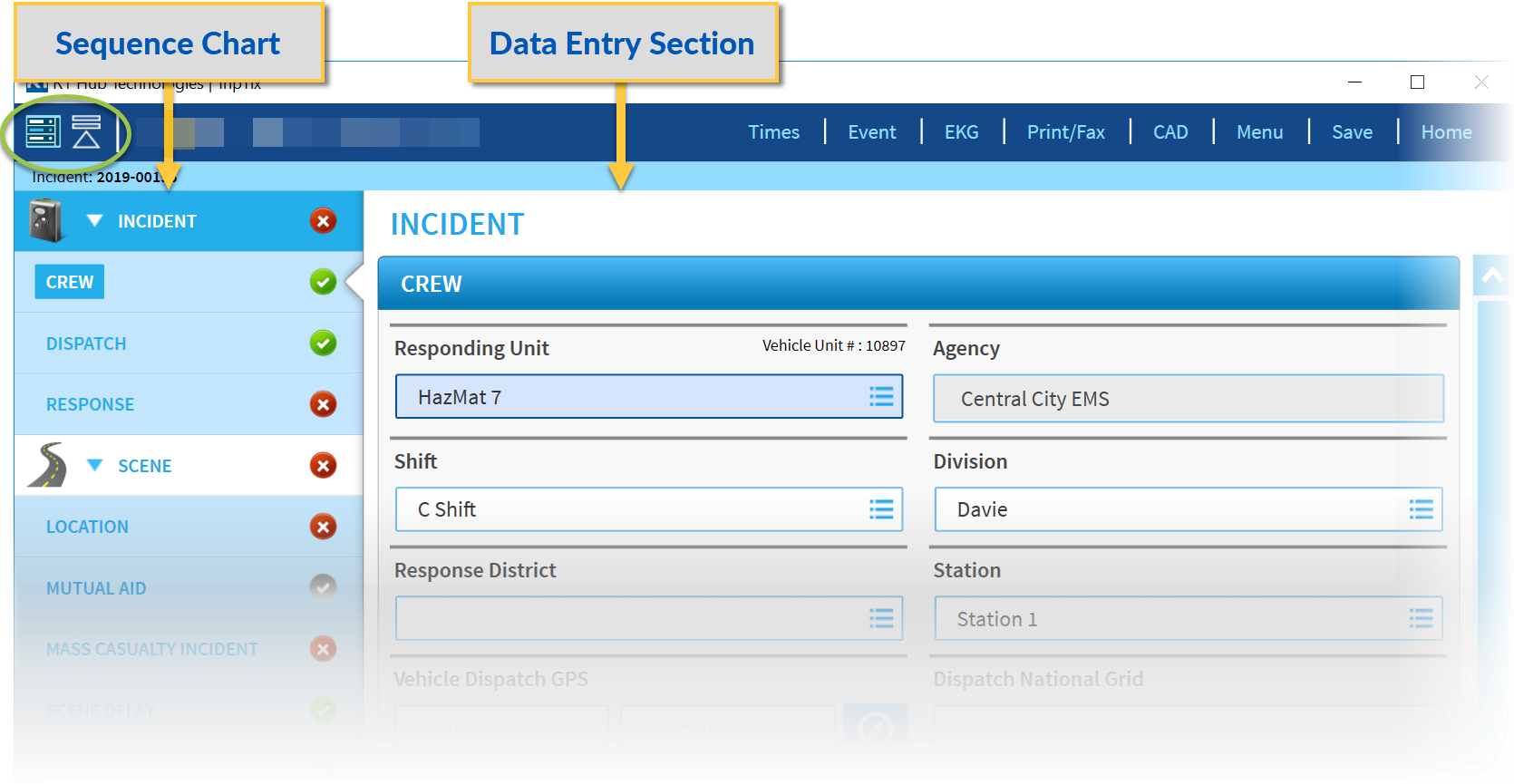
The Table View Editing option, found at Administration> System Settings> Other, defaults to On. Choose Off, if you would prefer that medics see each event detail page full-width.
Navigating Within Table View Editing
Users can switch between table view and data-entry view by tapping the Table View icon- - at the upper-left of the screen. ) The Data Entry section will fill the width of the screen.
To display sub-sections of the Sequence Chart, users tap the Expand icon- - at the upper-left of the screen.
To hide sub-sections of the Sequence Chart, users tap the Collapse icon- - at the upper-left of the screen.