Standard notifications can be sent by any administrator, on the fly, to anyone in the system, for any purpose. Automated notifications, however, can only be managed by DOH administrators. As a DOH administrator, you can modify both the details and the template of an automated notification.
To Activate, Deactivate and Configure Automated Notifications,
-
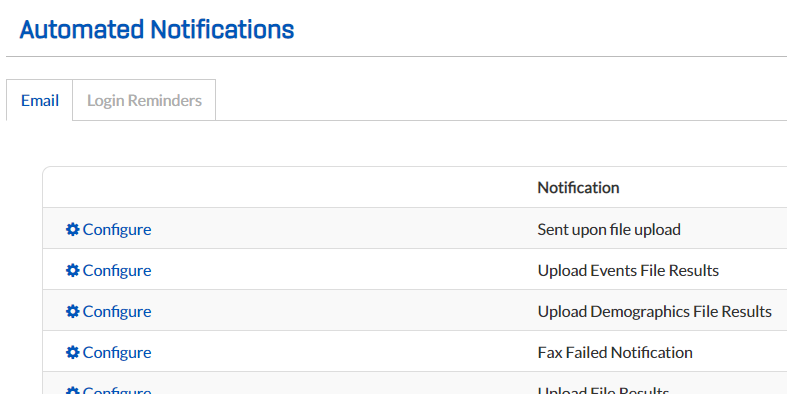
From any page, go to Notifications:Automated. The Automated Notifications page opens.
-
The Email tab is active by default. Locate the notification type in the list. Click its associated Configure link at the left. A window opens.
-
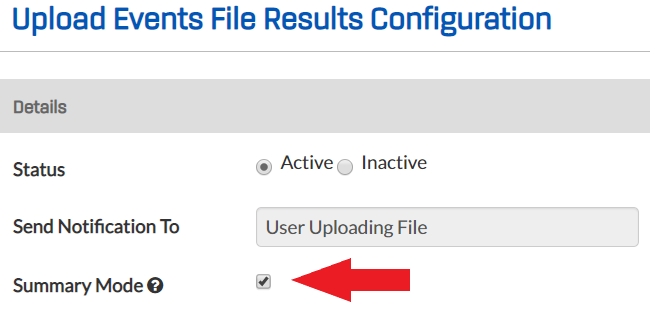
For Status, indicate whether the notification should be Active or Inactive.
-
Click Add Email Participants, as applicable. (Note: To remove a recipient from the list, check the box next to the person's name and click Remove.
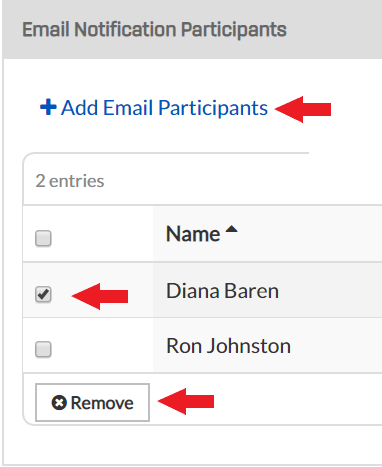
- You may click Save at this point, or you may choose to have users to receive the notification in digest/summary form by checking the Summary Mode box. Summary notifications will be delivered every 24 hours.
A Note on Incomplete Runs Notifications
In the case of an Incomplete Runs Notification Configuration, enter the number of hours that should elapse between notifications about idle run records. The Frequency in Hours field defaults to 72, but you may enter any number between 1 and 1,000. This configuration has no Summary mode.
Automated Login Reminders
Automated Login Reminders have default "read-only" templates that cannot be configured by the user. To change a Login Reminder from Active to Inactive, click its name in the list, and select the active/inactive state in the window that opens. Click Save.