IV events can be used to document the presence of or attempts at placing an IV or IO. The IV Event window contains three sections: Event Log, Event Details, and Authorization. For more information about each section, see IV Events Fields.
To add an IV event in Windows
-
In the side navigation of an open run record, tap Events.
-
At the top of the page, tap IV Event. The IV Event window opens.
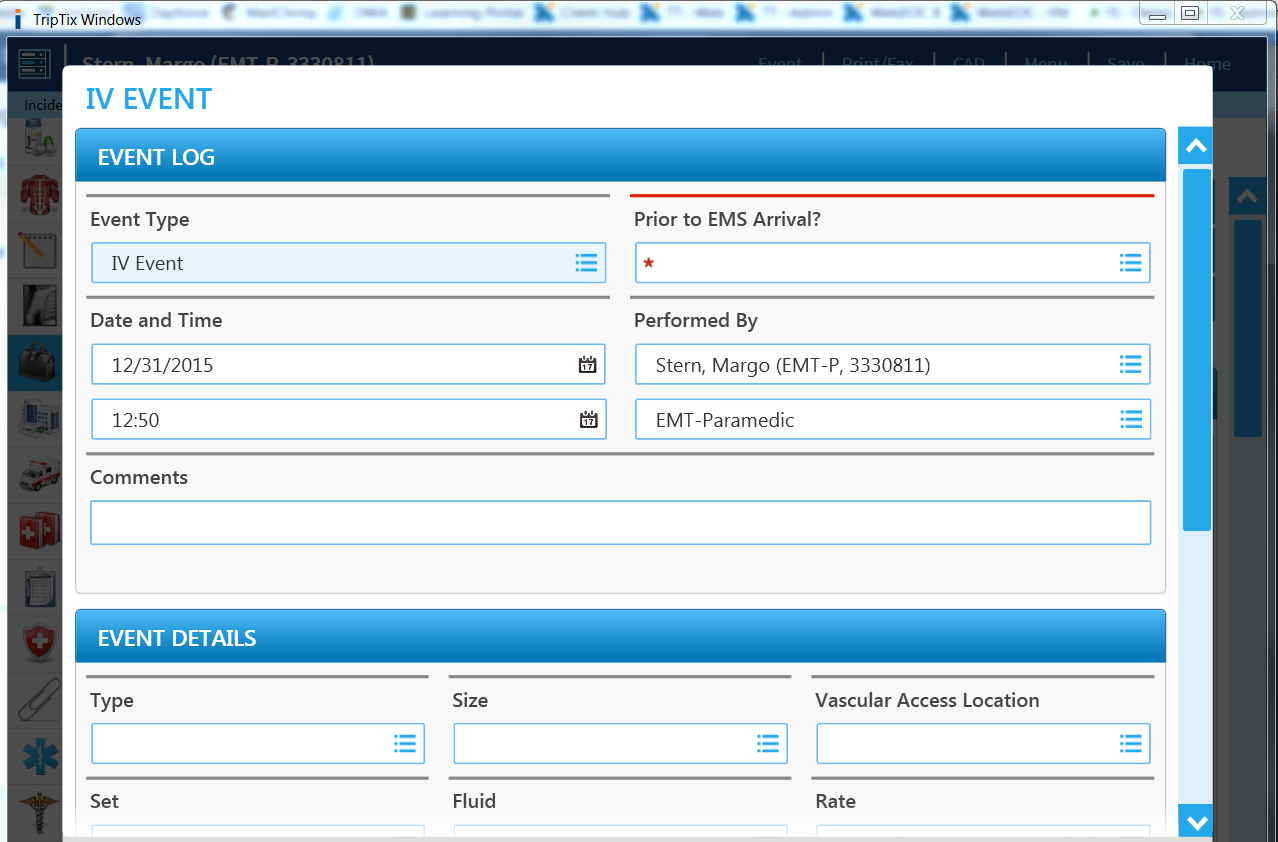
Note: If Table View Editing is enabled for your department, the IV Event section opens on a split screen, displaying the sequence chart on the left and the IV event fields on the right. -
Enter information in the fields using any of the following methods:
-
Tapping a field to type in an entry.
-
Selecting options from a window that opens.
-
Optionally, to clear a selection made in a pick-list window:
-
Tap in the field.
-
In the upper right corner of the newly opened pick-list window, tap CLEAR.
-
Tap OK.
-
-
To re-enter or clear the information in a single field, tap the clear icon.
-
When finished entering information in the fields, tap OK. The IV event appears in the Sequence Chart table.
Tip: If in Table View Editing mode, you can exit this mode by clicking the Exit Table View Editing link in the top right corner of the page.
To add an IV event in Web
-
In the side navigation of an open run record, click Events. The Sequence Chart subsection is displayed.
-
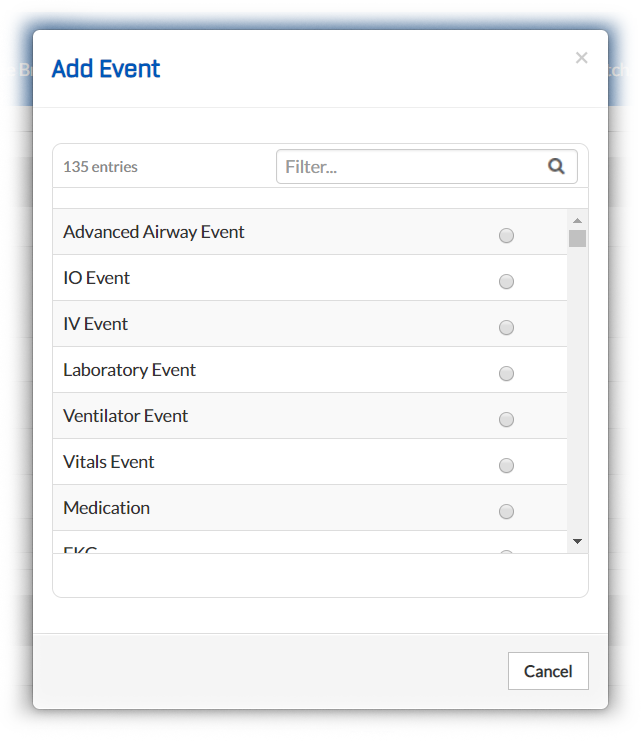
Click Add Event. The Add Event window opens.
-
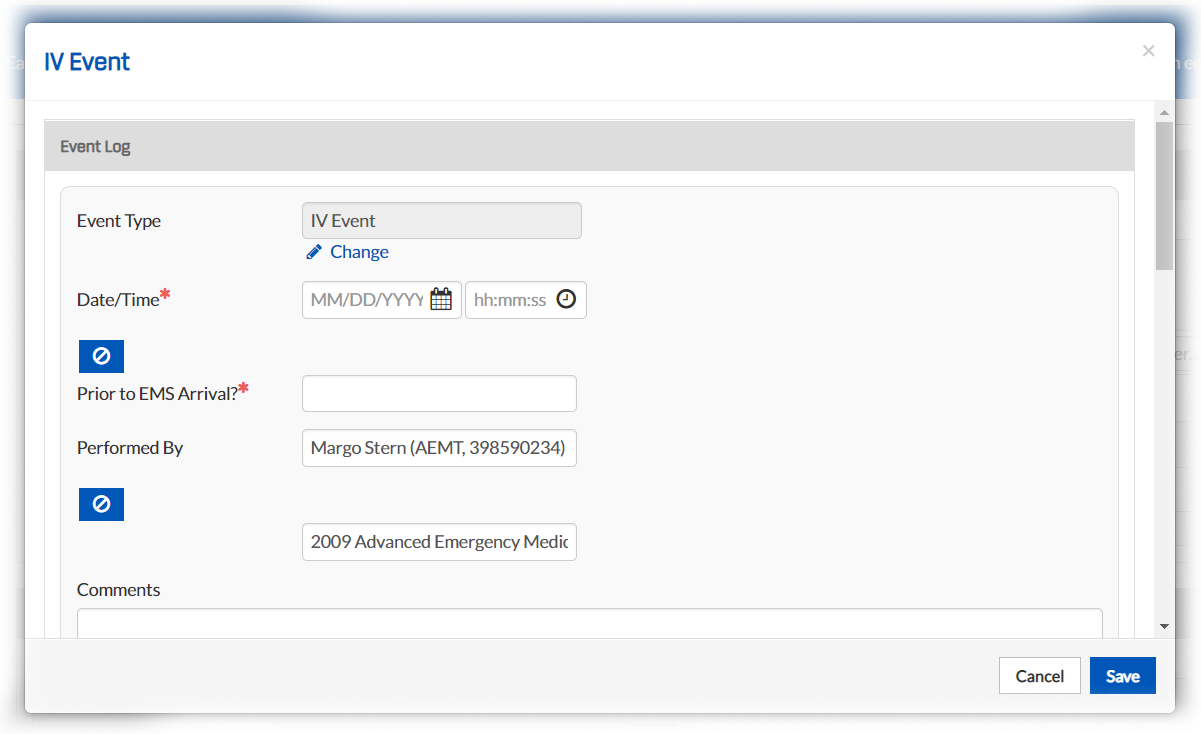
Select IV Event. The IV Event window opens.
-
Enter information in the fields using any of the following methods:
-
Clicking a field and typing in an entry.
-
Clicking a field and typing the first few letters of the value you want to enter. When a list of matches appears beneath the field, select the appropriate option.
-
-
To enter more than one item in fields that allow multiple values, continue typing in the field and select a new item.
-
Optionally, to clear a selection or entry, click the x next to the entry.
-
Click Save. The IV event and its details appear in the events table.
To edit an IV event in the table, click the event's corresponding Edit link. To delete an IV event, click the event's corresponding Delete link.