Medication events can be used to document a drug administration. The window contains four sections: Event Log, Event Details, Controlled Drug, and Authorization. For more information about how to complete each section, see Medication Event Fields.
Tip: If you add an O2 Event, the Medication window opens with Oxygen already pre-selected for Medication. As oxygen is a recognized medicinal therapy, adding this event follows the workflow for any other medication.
To document a drug administration in Windows
-
In the side navigation of an open run record, tap Events.
-
At the top of the page, tap Medication. The Medication Event window opens.
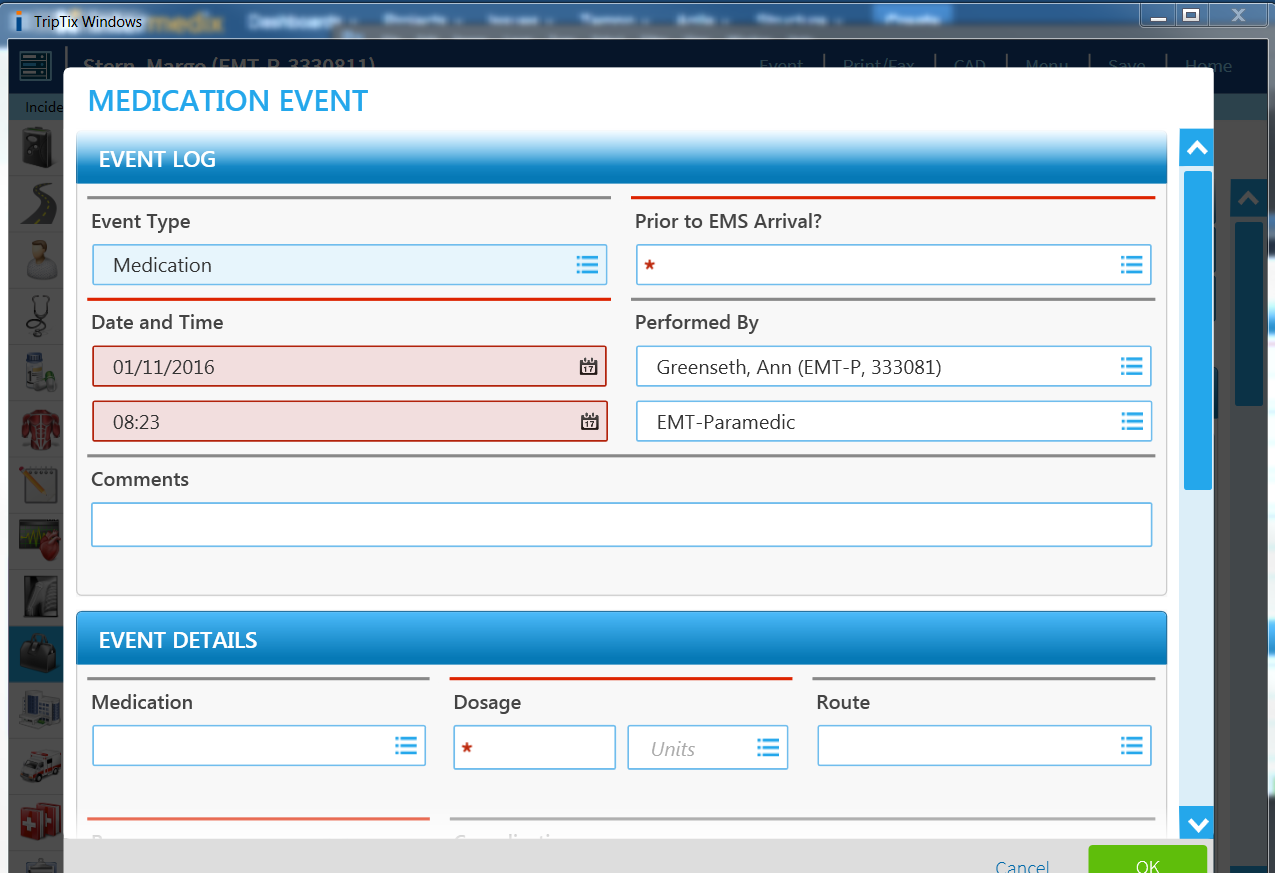
Note: If Table View Editing is enabled for your department, the Medication Event section opens on a split screen, displaying the sequence chart on the left and the medication event fields on the right. -
Enter information in the fields using any of the following methods:
-
Tapping a field to type in an entry.
-
Selecting options from a window that opens.
-
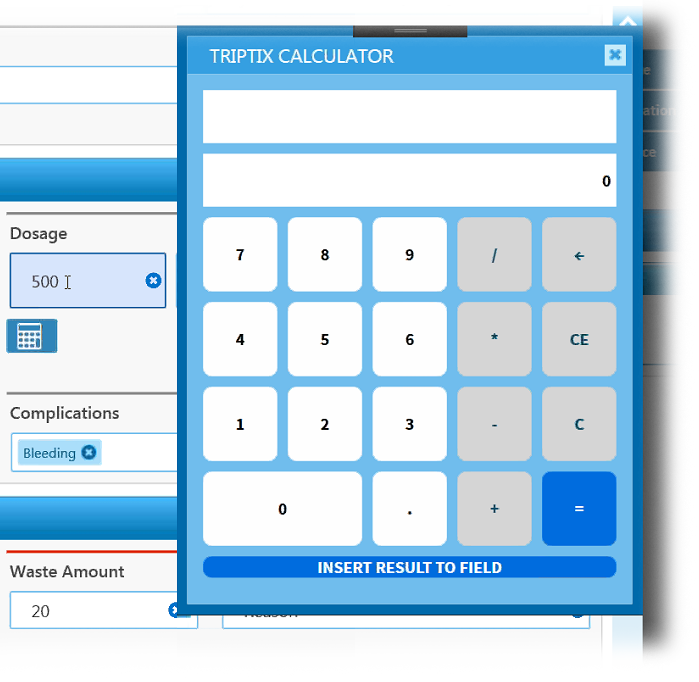
For dosage, clicking the the calculator icon, computing a calculation, and clicking Insert Result to Field.
-
Optionally, to clear a selection made in a pick-list window:
-
Tap in the field.
-
In the upper right corner of the newly opened pick-list window, tap CLEAR.
-
Tap OK.
-
-
To re-enter or clear the information in a single field, tap the clear icon.
-
When finished entering information in the fields, tap OK. The medication event appears in the Sequence Chart table.
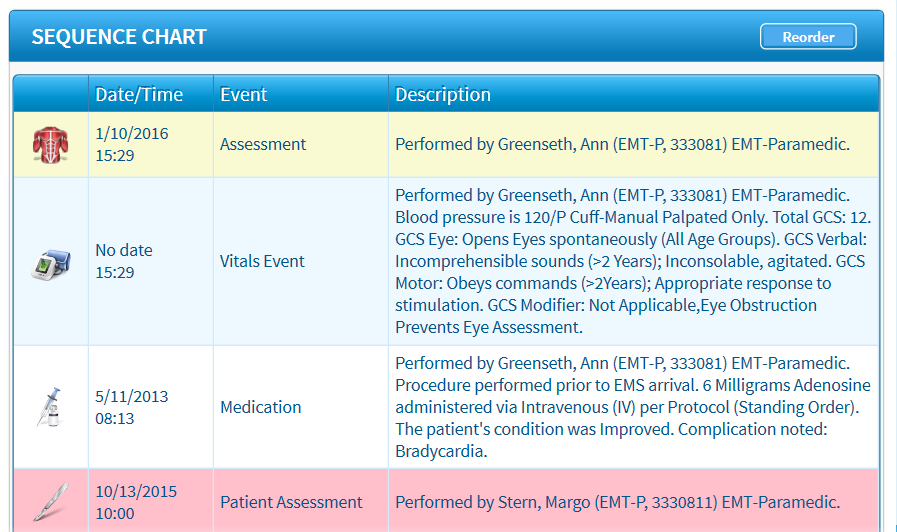
Tip: If in the Table View Editing mode, you can exit this mode by clicking the Exit Table View Editing link in the top right corner of the page.
To document a drug administration in Web
-
In the side navigation of an open run record, click Events. The Sequence Chart subsection is displayed.
-
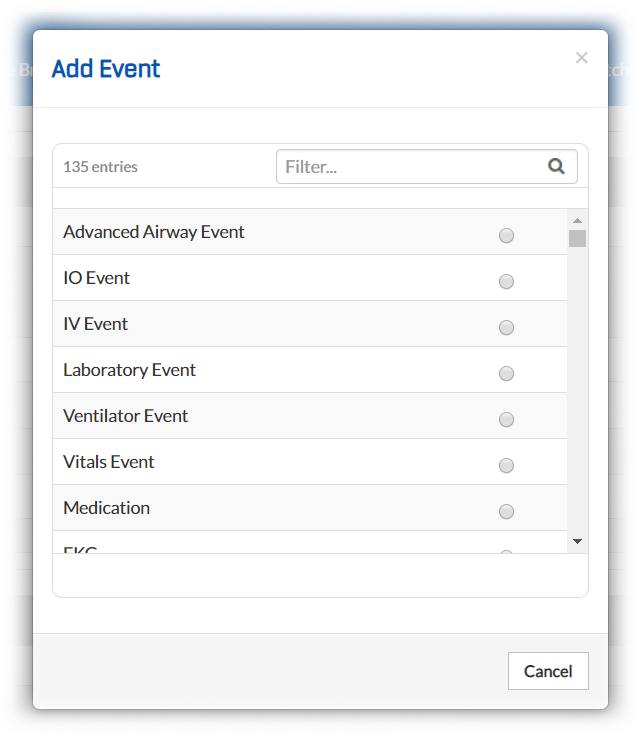
Click Add Event. The Add Event window opens.
-
Select Medication. The Medication window opens.
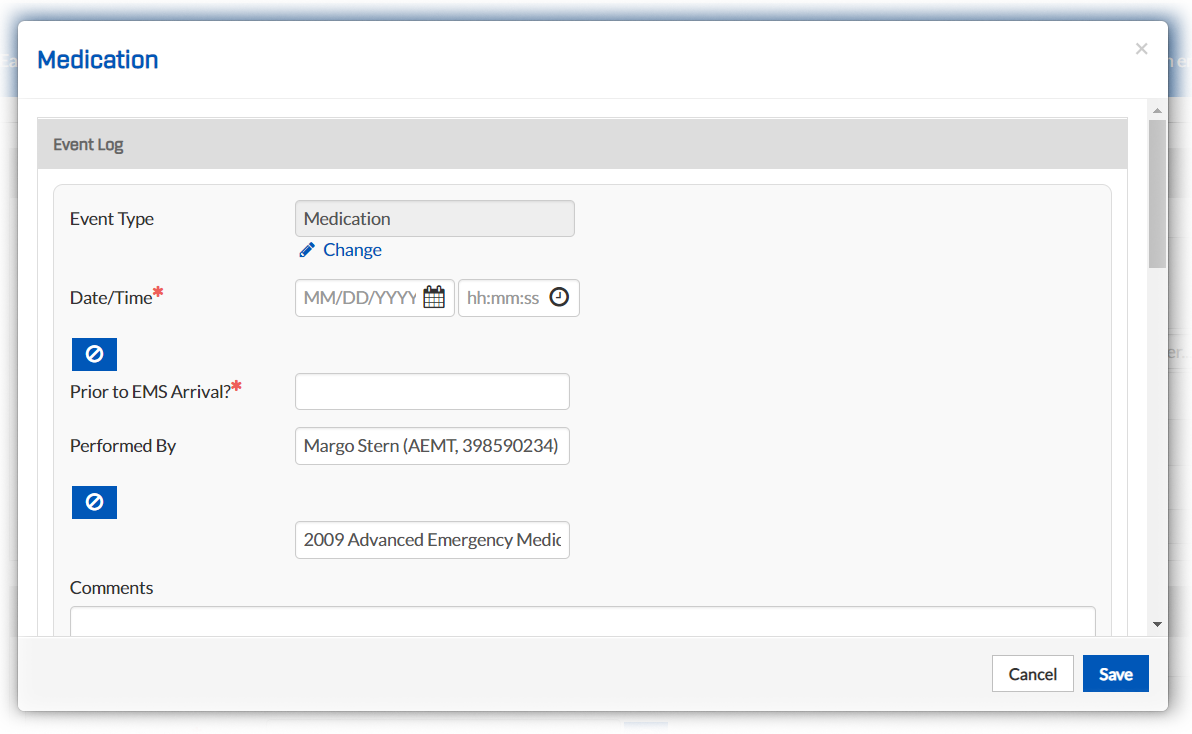
-
Enter information in the fields using any of the following methods:
-
Clicking a field and typing in an entry.
-
Clicking a field and typing the first few letters of the value you want to enter. When a list of matches appears beneath the field, select the appropriate option.
-
-
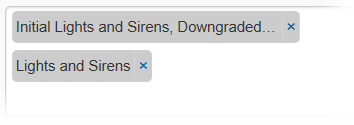
To enter more than one item in fields that allow multiple values, continue typing in the field and select a new item.
-
Optionally, to clear a selection or entry, click the x next to the entry.
-
Click Save. The medication event and its details appear in the events table.
To edit a medication event in the table, click the event's corresponding Edit link. To delete a medication event, click the event's corresponding Delete link.