The Notifications tab allows you to send notifications informing users of deadlines, invalid submissions, and more. Two types of notifications are available: Standard and Automated. When sending a Standard or Automated notification, you can choose to customize the alert format by creating a unique notification template.
To Create a Notification Template
Note: The images in the procedure reflect the pages as seen by DOH Administrators. What you see may be slightly different if you are not a Department of Health System Administrator.
-
From any page, go to Notifications:Templates. The Notification Templates page opens.
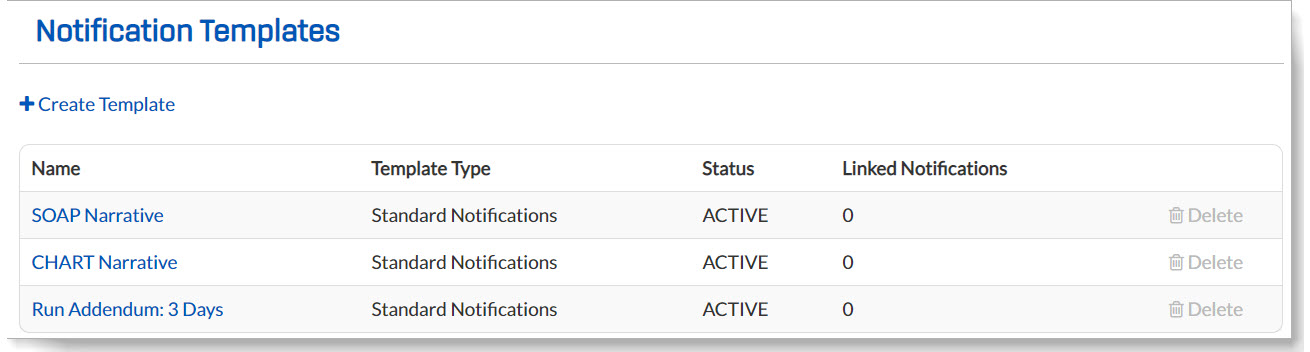
-
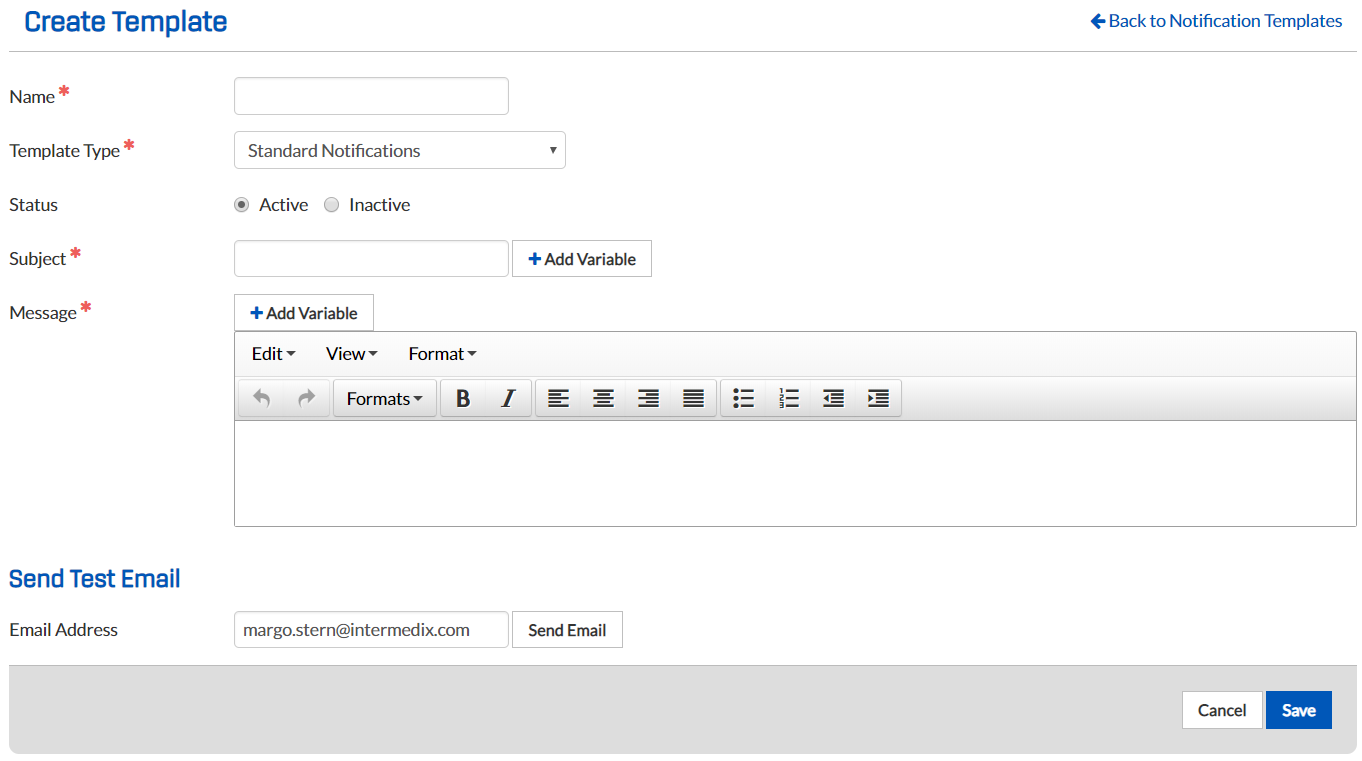
Click Create Template. The Create Template page opens.
-
Enter information in the fields, adding variables as applicable.
(Note: The available variables connected with the Add Variable buttons are set by your department.) -
Click Save.
Once the template has been created, you can use it to send standard notifications. If you are a DOH Administrator, you can also use templates to send automated notifications.
To Delete a Standard Notification
- Click the notification's name in the list on the Notification Templates page.
- On the Edit Template page, click Inactive and Save.
- On the Notification Templates page, note that the trash can for that notification is enabled (blue). Click the trash can, and click OK to confirm.
Notification Template Fields
- Name—A name for the template
- Template Type—Type of template you want to create
- Status—Whether the template is Active or Inactive
- Inactive templates cannot be selected for standard notifications
- Subject—Subject of the message
- Message—Message content
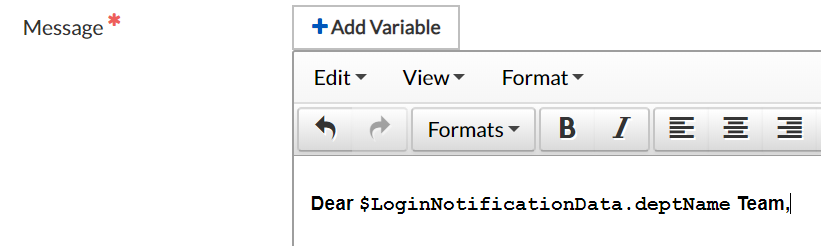
- If you click Add Variable at the top of the Message section, you can have the notification open with a personalized greeting. For example, if you typed "Dear [space]" then added the variable Department Name, then typed "[space] Team," the recipients' messages would open with "Dear My Department Team."
- Send Test Email—To send yourself a test email before sending the notification, verify your email address, and click Send Email.