Use the Insurance & Payment section to enter information about the patient's insurance. The Insurance & Payment section contains up to six subsections: General Information, Primary Insurance, Prior Authorization, Work Related, Employer, and Supplies. If necessary, you can add a Secondary Insurance and Tertiary Insurance section. Required fields in this section may vary based on the rules set by your department.
See the following topics related to completing the Insurance & Payment section and its subsections.
-
Validate addresses (of the patient's insurance companies and employers).
-
Insurance and Payment fields – Includes definitions of certain terms, explains how to enter information in unique fields, and gives valuable shortcuts for completing this section.
To complete the Insurance & Payment section in Windows
-
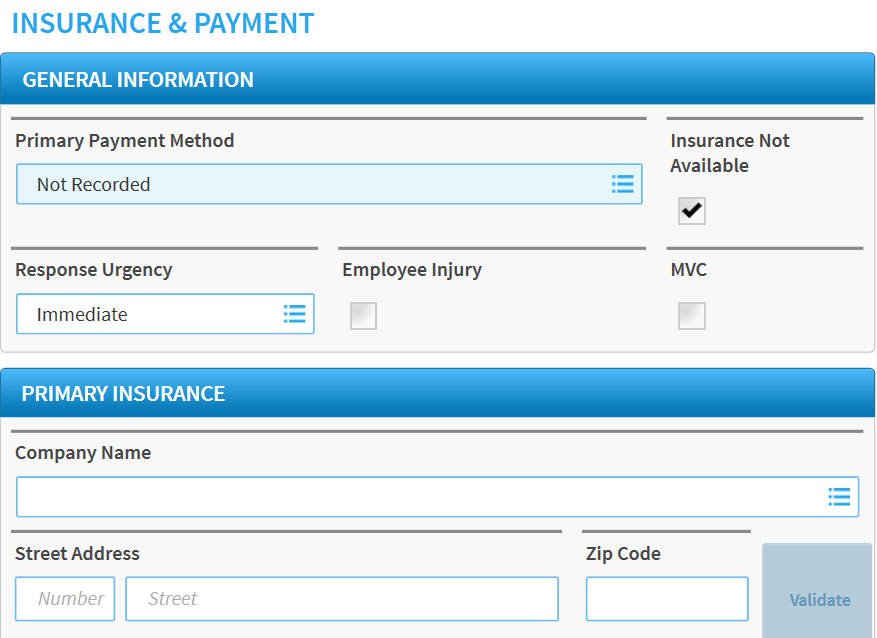
In the side navigation of an open run record, tap Insurance & Payment. The section expands to show the available subsections.
-
If not already selected, tap General Information.
-
Enter information in the fields using any of the following methods:
-
Tapping a field to type in an entry.
-
Selecting options from a window that opens.
-
Optionally, to clear a selection made in a pick-list window:
-
Tap in the field.
-
In the upper right corner of the newly opened pick-list window, tap CLEAR.
-
Tap OK.
-
-
To re-enter or clear the information in a single field, tap the clear icon.
-
Repeat steps 3-5 as needed and applicable for the Authorization, Work Related, and Supplies subsections.
-
To verify all required fields are completed, check the record for errors.
-
If necessary, to automatically enter information in the fields, import CAD data into the run record.
To complete the Insurance & Payment section in Web
-
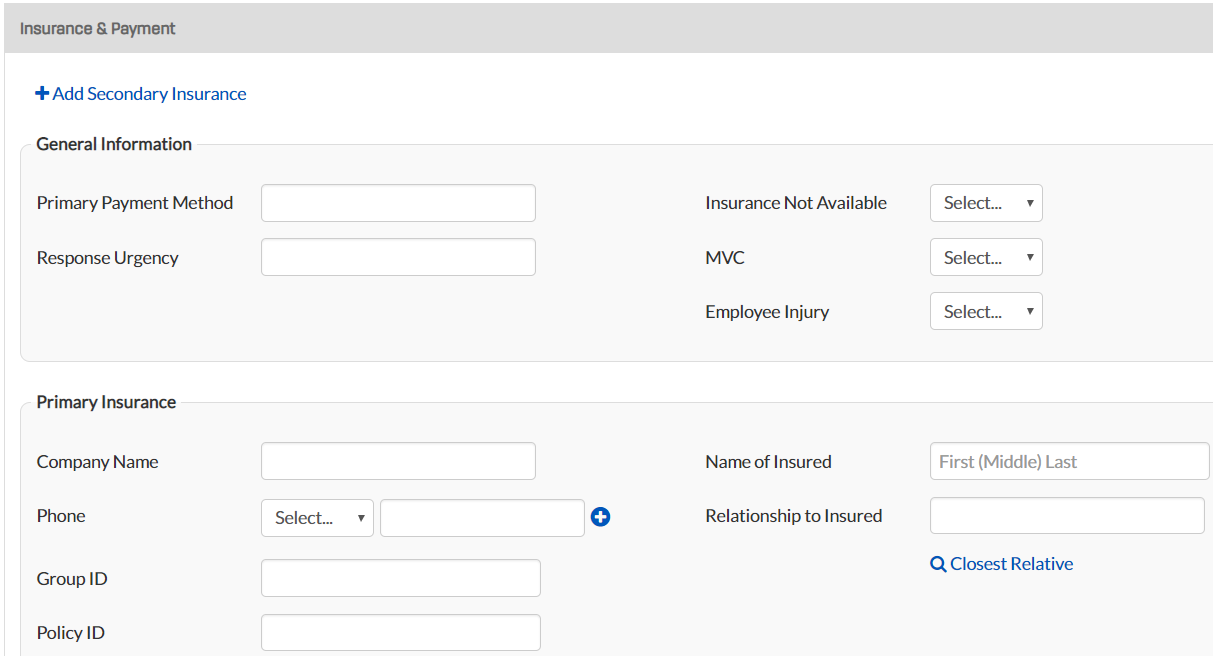
In the side navigation of an open run record, click Insurance & Payment. The General Information subsection is displayed.
-
Enter information in the fields using any of the following methods:
-
Clicking a field and typing in an entry.
-
Clicking a field and typing the first few letters of the value you want to enter. When a list of matches appears beneath the field, select the appropriate option.
-
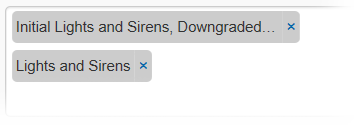
To enter more than one item in fields that allow multiple values, continue typing in the field and select a new item.
-
-
Optionally, to clear a selection or entry, click the x next to the entry.
-
Repeat steps 2-3 as needed and applicable for the Primary Insurance, Prior Authorization, Work Related, Employers, and Supplies subsections.
-
To verify all required fields are completed, check the record for errors.
-
If necessary, to automatically enter information in the fields, import CAD data into the run record.