TripTix by allows you to enter new run records and manage existing ones. After you create a run record, the application automatically uploads it to TripTix Web to prevent loss of data. If you create a record but need to finish it later, you can do so either by using the mobile device or logging in to TripTix Web.
The TripTix run record form is used to record all incident and patient information.
To Create a New Run Record from CAD
Note: This procedure only applies if your department administrator has enabled the CAD list feature.
-
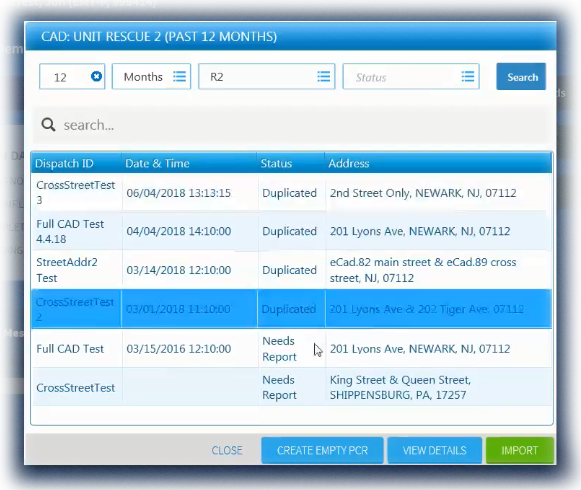
From the Home page, tap Create Patient Care Record. The CAD window opens.
-
Enter search parameters in the search fields at the top to locate the appropriate CAD incident based on date, unit, and/or status. Tap Search.
-
Select the correct CAD incident from which to create the run record, and then tap Import. The run record opens with CAD details automatically entered in the applicable fields.
Tip: If you are not sure which CAD incident applies to the run record you need to work on, select the CAD incident and tap View Details. Repeat as needed to locate the appropriate incident.
Alternatively, if a CAD incident does not exist for the run record, tap Create Blank PCR to generate a blank record from which to complete the chart.
To Create a New Run Record in Windows
-
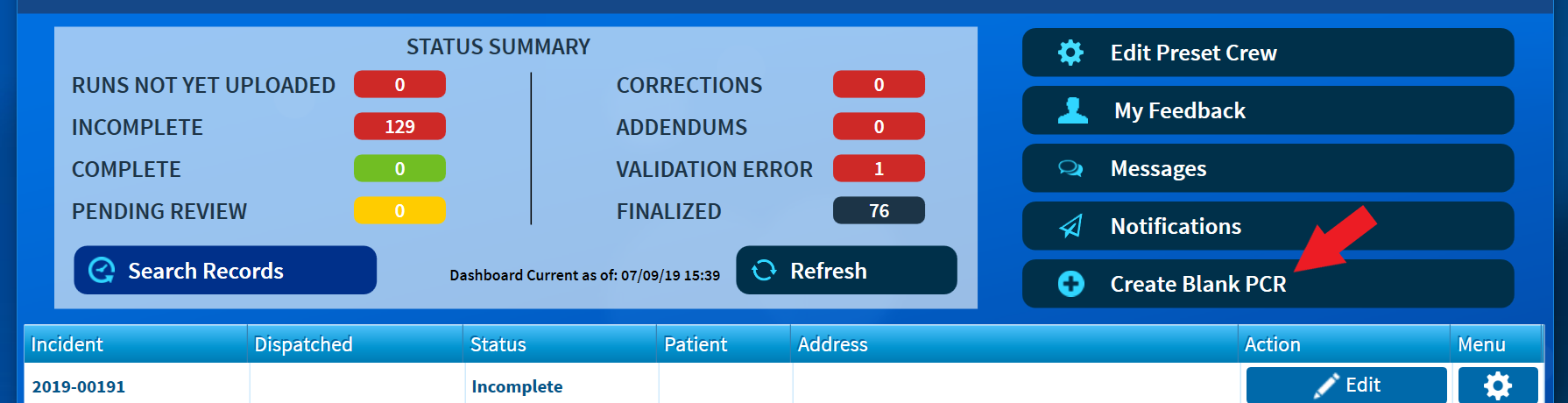
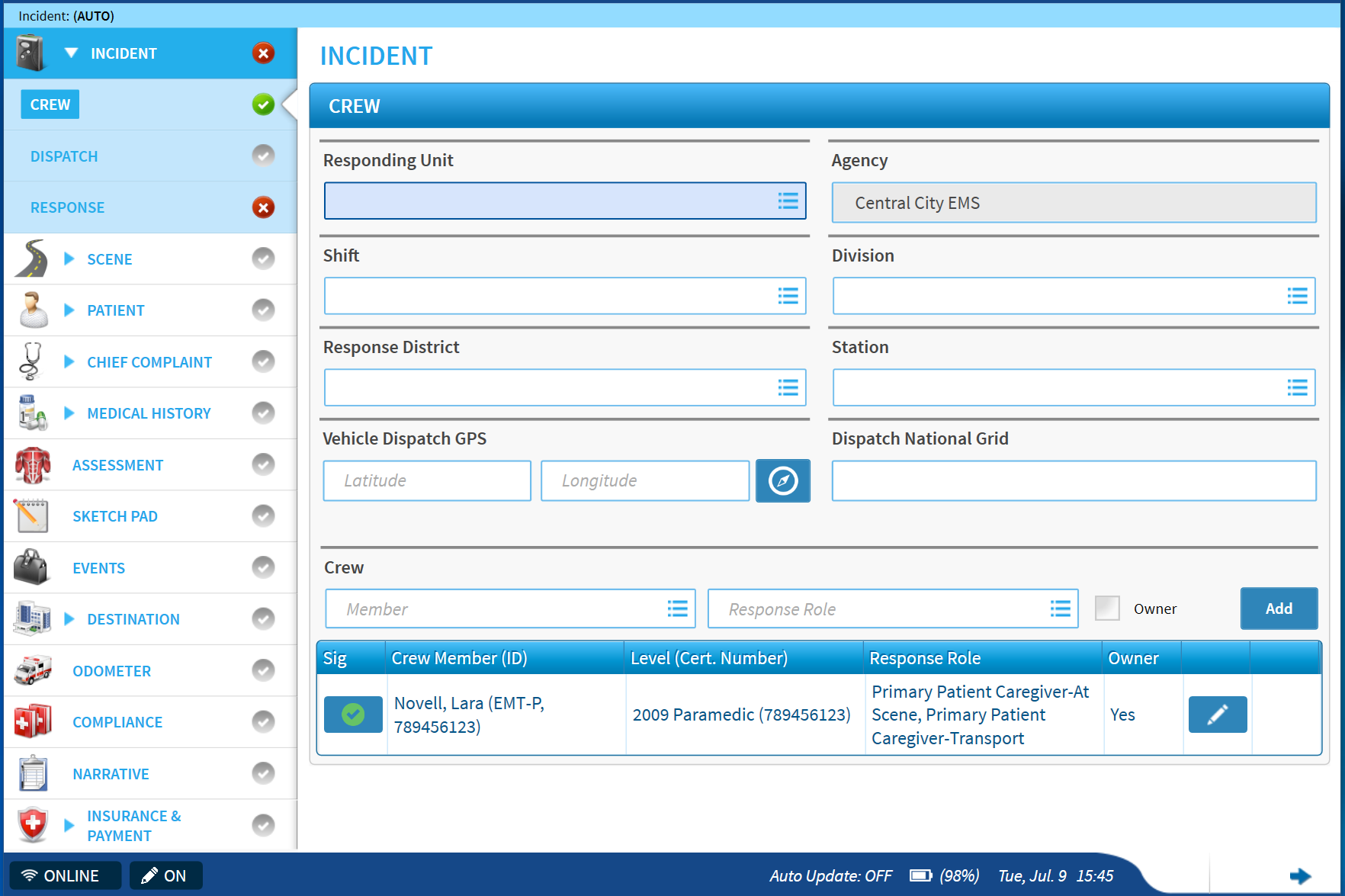
On the Home page, tap Create Patient Care Record. A new run record opens, displaying the Incident section. As the owner of the record, your name and credentials are shown in the Crew subsection.
-
Complete each run record section as necessary. (Required fields are marked with a red line and red asterisk. Some fields will become required, based on your entries elsewhere. Fields set apart with a yellow line and asterisk are recommended but not required.)
See the following topics for assistance with completing each section.
-
To make sure you have completed all required fields, check the run for errors.
-
When you are finished, in the upper right corner of the run window, tap Save.
Tip: If you cannot finish the run record, you can click Save, exit the record, and edit the record later.